
💡You see the Transport pricelist tab only if the Transport feature is activated on in your agency.
How the transport price is calculated
- The price is calculated per person on the trip.
- People with "No transport" are not charged.
- There and back are separate trips.
- Drivers and passengers are calculated the same way. To charge differently for drivers, use the Transport role condition. A person without a role counts as Passenger.
What you can use
Conditions:
- Always apply, Profession and Role (the position role).
- Transport conditions: Transport direction, Transport distance, Transport duration, Transport role, Transport beginning (planned), Transport overlap (planned).
Units:
- No unit: no amount, for grouping rules.
- Flat rate: a fixed amount per person.
- Distance: per km or per mile, based on your agency settings.
- Travel hours: per hour of travel.
- Custom units, except Daily Overtime, Weekly Overtime, Combined and Break penalty.
Distance uses the person's own distance if it is set. Otherwise, it uses the trip distance. The actual distance is confirmed when you close the shift.
Travel hours are counted from the start and end time of the trip. If a person has their own start or end time on the trip, that time is used instead.
Time before the trip starts is never counted. Example: the trip goes from 08:00 to 10:00. The driver has to be at the meeting point at 07:30. Travel hours are still 2 (08:00–10:00), not 2.5.
1. Navigating to Settings
- Go to Settings → Finances → Ratelists.
- Select the Transport pricelist tab.
- Click the ADD RATELIST button on the right side of the page. The Transport pricelist editor opens.
2. Transport pricelist header
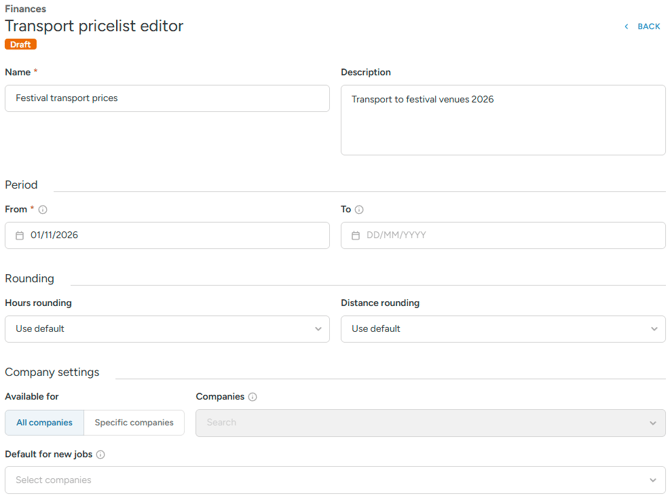
- Name: give the list a clear name, for example "Festival transport prices". Only admins see it.
- Description: optional internal notes about what the list covers. Only admins see it.
- Period (From / To): shown when you choose a pricelist, so you can tell which one to use. You can also prepare next year's prices in advance.
- Rounding: choose the Hours rounding and the Distance rounding. Leave Use default to follow the default rounding for transport lists, which you set on the Rounding tab of the Ratelists page.
Note: The dates are not hard restrictions, just guides. The system will still allow you to use a pricelist outside of its set dates.
Company settings:
- All companies: the pricelist is available on jobs for all companies.
- Specific companies: the pricelist is offered only on jobs for the companies you pick.
- Default for new jobs: for the companies you select here, this pricelist is filled in automatically on every new job.
3. Adding a first rate rule
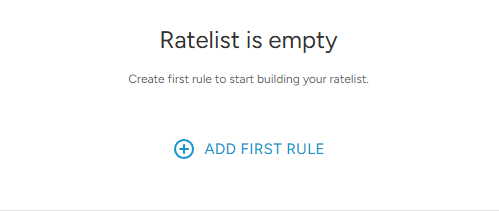
Click ADD FIRST RULE to start. A rate rule has a Condition, Unit, Rate and Component.
- Set a Condition (the "If"): choose when the rule applies. Example: Always apply, because every person on the trip is charged for travel time.
- Select a Unit (the "When"): choose how the trip is measured: Distance, Travel hours, Flat rate or a custom unit. Example: Travel hours.
- Enter the Rate (the "How much"): enter the amount per unit. Example: €3 per hour.
- Create a rate Component (the "What"): the name shown on calculations, price quotes and other client documents, and included in exports and the API. Example: "Travel time".
Result: For every person on the trip, the client is charged €3 for each hour of travel, labeled as Travel time.
4. Adding and connecting more rules
Most transport pricelists need more than one rule. For each new rule, decide how it connects to the rules you already have.
- Stand-alone rule: works on its own.
- Example: Transport role = Driver → Distance, €0.25 per mile, component "Mileage". Drivers are charged per mile on top of the travel time.
- Nested rule ("And also if..."): adds a condition inside its parent rule.
- Example: the parent rule is Transport role = Driver with No unit. Inside it, you add rules based on the trip distance.
- Else rule ("If not, then..."): applies only when the rule above it does not.
- Example, nested under the Driver rule:
- Transport distance ≤ 50 → Flat rate, €10, component "Driver fee"
- Else: Always apply → Flat rate, €20, component "Driver fee"
- Drivers on trips up to 50 miles are charged €10. Longer trips are charged €20.
- Example, nested under the Driver rule:
- Always apply: applies to every person on the trip, like the travel time rule above.
❗ All rates with the same component must use the same unit. That's why the example uses separate components: "Travel time" (hours), "Mileage" (distance) and "Driver fee" (flat rate). Otherwise the list cannot be saved.
💡 To charge a different price for the way back, add a rule with Transport direction.
5. Testing your logic with the Calculator
Before you publish, click Open calculator and test a sample trip. The Calculator shows the full breakdown and highlights the rules that were used, so you can see exactly how the price was calculated.
- Set the Start and End of the trip.
- Choose the Profession and the Position role.
- Choose the Transport role: Driver or Passenger.
- Fill in the Distance and the Direction.
- Click Calculate.
Example: The pricelist has all three rules from above: Travel time €3 per hour, Mileage €0.25 per mile for drivers, and a Driver fee of €10 up to 50 miles, €20 above.
- Role Driver, trip of 2 hours, Distance 40 miles → €6 Travel time (2 × €3) + €10 Mileage (40 × €0.25) + €10 Driver fee = €26
- Role Driver, trip of 2 hours, Distance 80 miles → €6 Travel time (2 × €3) + €20 Mileage (80 × €0.25) + €20 Driver fee = €46
- Role Passenger, trip of 2 hours, Distance 40 miles → €6 Travel time = €6. Mileage and the Driver fee apply only to drivers.
6. Save & publish
When the transport pricelist has all your rates, click Publish. The pricelist can then be chosen on jobs.
Not ready yet? Save the pricelist as a draft and finish it later.
💡 Add names to your main rule rows for easy navigation within the pricelist.