
How it works
You create roundings on the Rounding tab of the Ratelists page. Then you choose which rounding is used:
- Rule: a rounding chosen in one rule is used only for that rule.
- Ratelist: a rounding chosen in the ratelist is used for all its rules without their own rounding.
- Default: the default rounding of the ratelist type is used everywhere else.
The rule wins over the ratelist, and the ratelist wins over the default.
Each rule is rounded on its own. The hours of the base rate and the hours of a night bonus are rounded separately. Flat rates are never rounded.
Creating a rounding
- Go to Settings → Finances → Ratelists and open the Rounding tab.
- Click Add rounding.
- Fill in:
- Name, for example "Half hour, up".
- Description (optional).
- Applies to: Hours, or Distance for transport.
- Round to: the step, in minutes for hours or in km or miles for distance. 0 means no rounding.
- Direction: Up, Down, Nearest or Up with grace period.
- Grace period: only for Up with grace period.
- Save.
The table shows how many ratelists use each rounding.
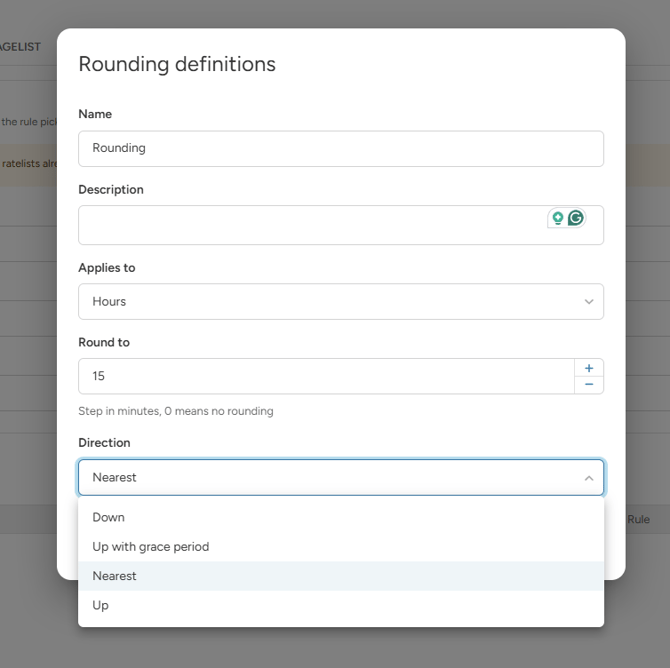
Directions
- Up: always to the next step. 7 h 10 min → 7.5 h.
- Down: always to the previous step. 7 h 20 min → 7 h.
- Nearest: to the closer step. 7 h 10 min → 7 h, 7 h 20 min → 7.5 h. Exactly half way goes up.
- Up with grace period: a few minutes over the step are forgiven, anything more rounds up.
The examples use a 30 minute step.
Example:
- Rounding: Round to 60 minutes, Up with grace period, Grace period 15 minutes.
- A staff member works 13 h 15 min → 13 hours.
- A staff member works 13 h 16 min → 14 hours.
Default rounding
In Default rounding on the Rounding tab, you choose the default for each type:
- Pricelist: hours and Wagelist: hours
- Transport pricelist: hours and distance
- Transport wagelist: hours and distance
Changing a default applies immediately, also to ratelists already in use. Results that were already calculated change when they are calculated again, for example when you edit the times or close the shift. You are asked to confirm the change.
Rounding in a ratelist
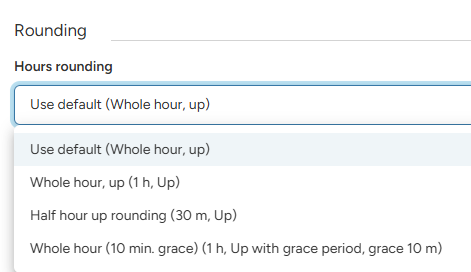
In the ratelist form, open the Rounding section and choose Hours rounding. Transport ratelists also have Distance rounding.
Leave it on Use default to follow the default rounding of the type.
Rounding in one rule
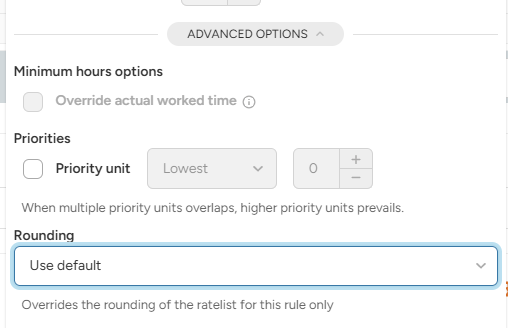
- In the rule, open the unit and then Advanced options.
- In Rounding, choose a rounding.
It overrides the rounding of the ratelist for this rule only.
Example:
- The wagelist uses "Half hour, up".
- The night bonus rule uses "Quarter hour, up".
- A staff member works 18:00 – 01:10.
- Worked hours: 7 h 10 min → 7.5 hours. Night 22:00 – 06:00: 3 h 10 min → 3.25 hours.
Rounding and minimum hours
If a rule has Minimum hours, the minimum is applied first and then the hours are rounded.
Seeing the rounding in results
The Calculator and the rate overview show the hours before rounding next to the rounded hours, for example 5.82h ≈ 6h.
Good to know
- Once a rounding is used by a ratelist or set as a default, you cannot change its step, direction or grace period. Create a new rounding instead.
- Hours of tag ratelists are rounded by the default rounding of pricelists and wagelists, unless a rule picks its own rounding.
- Prices and wages can use different roundings: set a different default or choose a rounding in each ratelist.
Test your ratelist in the Calculator with a shift that does not end on a full hour, for example 18:00 – 01:10, to see how the rounding changes the result.