
These are custom units. To pay or charge the time worked after the planned end of a shift, use the Overtime unit instead. Read more in Ratelists: Overtime unit.
Daily Overtime: above a daily limit
- Go to the Units tab and click Add custom unit.
- Choose the type Daily Overtime.
- Enter the Daily overtime limit in hours, for example 8.
- Save the unit and use it in your rule.
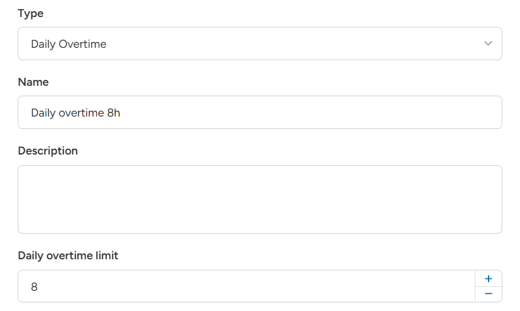
How it works:
- The system adds up the hours the staff member worked earlier that day, from midnight, in all their shifts, including other jobs.
- Hours of this shift above the limit are overtime.
- The day is the day the shift starts. A night shift that runs past midnight counts fully to the day it started.
- The overtime always lands on the later shift. Earlier shifts are not changed.
Example:
- Limit 8 hours.
- A staff member works 5 hours in the morning and 6 hours in the afternoon.
- The afternoon shift has 3 hours of overtime (5 + 6 = 11, which is 3 over the limit).
Weekly Overtime: above a weekly limit
- Go to the Units tab and click Add custom unit.
- Choose the type Weekly Overtime.
- Enter the Weekly limit in hours, for example 40.
- Choose the Reset day: the day your week starts, for example Monday.
- Save the unit and use it in your rule.
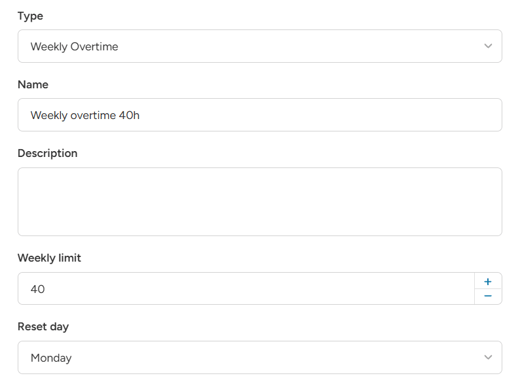
How it works:
- The system adds up the hours the staff member worked since the reset day, in all their shifts, including other jobs.
- Hours of this shift above the limit are overtime.
Example:
- Limit 40 hours, reset day Monday.
- A staff member has worked 36 hours from Monday to Thursday.
- On Friday they work 8 hours: the first 4 hours are normal, the last 4 hours are overtime.
Daily and Weekly Overtime count the staff member's other shifts too, even if they belong to a different job or client.
Close shifts in the right order
The overtime is calculated when you close the shift. At that moment, the system takes the hours the staff member has in their earlier shifts that day or week. An earlier shift that is still open counts with its planned times.
If you change or close an earlier shift after a later one is already closed, the later shift is not updated. Reopen the later shift and close it again to recalculate its overtime.
Example:
- Limit 8 hours. Morning shift planned 07:00 - 11:00, afternoon shift 13:00 - 18:00.
- You close the afternoon shift first. The morning shift still counts as planned: 4 + 5 = 9 hours, so 1 hour of overtime.
- Then you close the morning shift. It actually ran until 13:00, so the staff member worked 6 + 5 = 11 hours that day.
- The afternoon shift still shows 1 hour of overtime. Reopen it and close it again to get the correct 3 hours.
Close the shifts of one staff member in the order they happened, earliest first.
Example
Base rule: Worked hours, €20 per hour. Overtime rule: Daily Overtime (limit 8 hours), 50% of "Basic Hour Wage".
A staff member works 10 hours in one shift:
- Base: 10 × €20 = €200
- Overtime: 2 × €20 × 50% = €20
Total: €220.
Good to know
- Unpaid breaks are taken out of the hours, the same as with Worked hours. Paid breaks count as work.
- Overtime hours are rounded like any other hours, by the rounding of the rule, the ratelist or the default.
- Daily and Weekly Overtime are not available in transport ratelists.
- If you use more than one overtime unit in the same ratelist, make sure an hour is not paid as overtime twice. Use priorities or Else rules.