
Updating a ratelist
- Open the ratelist on the Ratelists page.
- Make your changes.
- Click Update.
If the ratelist is not used on any job yet, your changes are simply saved.
If the ratelist is already used, the system creates a new revision: v2, v3 and so on.
How revisions work
A revision is a new version of the same ratelist. It keeps your past calculations safe.
- The old revision stays on the jobs that already use it.
- The new revision is the one you see in the ratelist table and in the selection lists.
- If the list was a default, the default moves to the new revision.
A new revision is created when you change the name, description, dates, status or rules. Changing only the company availability or company defaults does not create a new revision.
Example:
- Wagelist "Event Staff Wages 2026" v1 is used on two jobs.
- You raise the hourly rate from €20 to €21 and click Update.
- The list becomes v2. The two jobs still use v1 until you migrate them.
Migrating open shifts to the new revision
After you click Update, the dialog Migrate to new revision opens if open jobs still use an older revision.
- Check the list. It shows Job > Shift > Position, with the current revision and the Target ratelist.
- Tick what you want to move. Nothing is ticked by default.
- Click Confirm. Click Cancel to keep everything on the old revision.
What happens when you migrate:
- Job: only the job's default ratelist changes. Its positions keep their ratelist.
- Position: the position and all its attendances use the new revision. Prices and wages are recalculated.
- Transport trip: the trip uses the new revision and is recalculated.
You then see "Migration succeeded".
The list shows only positions that are not closed or cancelled, including positions in the past that are not closed yet. Closed positions are never migrated. They keep the revision they were calculated with. To move them, reopen the shift first.
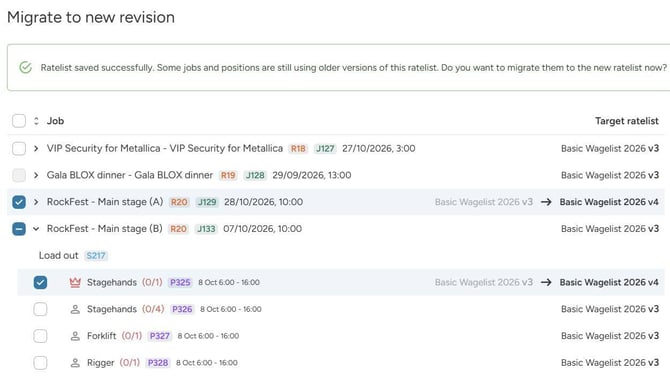
To move a whole job, tick the job and its positions. Ticking only the job changes the default for new positions.
Older revisions
- In the editor footer, click Revision: v2 to open the Revisions dialog and see older versions.
- In the ratelist table, the Revision column shows the current revision. The row menu has a Revisions item.
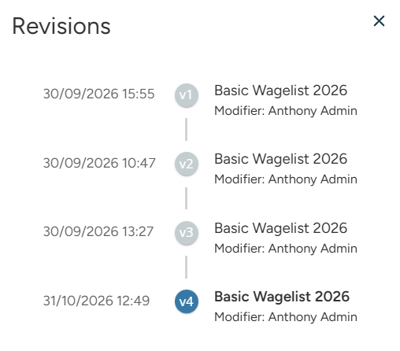
Older revisions are read-only. You see "Read-only mode: Newer ratelist revision exists". To make changes, switch to the latest revision.
You can also change which ratelist one job uses, without changing the ratelist itself. Read more in this article.