
Where you set it up
- Go to Settings > Work > Tags.
- Open a tag, or add a new one.
- Scroll to the Prices and Wages sections.
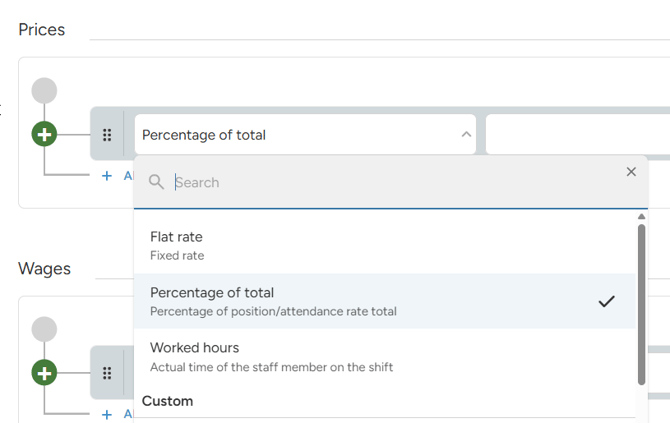
A tag without rules shows "Tag has no rates". Click Add rules to start. Each section shows Last change with the date.
How tag rules work
Tag rules are simpler than a full ratelist:
- There are no conditions. Every rule always applies.
- There are no nested rules and no Else rules.
- The row menu has only Delete, Copy and Add name.
- There is no "No unit" option.
- There is no Calculator, no help slides and no undo.
Units you can use
- Flat rate: a fixed amount.
- Worked hours: an amount per worked hour.
- Percentage of total (Percentage of position/attendance rate total): a percent of the total wage or price.
- Custom units, except Break penalty.
Percentage of total counts from the attendance's total wage or price.
Example:
- Tag "Last minute order", Prices: Percentage of total, 10%
- A position with a total price of €500 gets the "Last minute order" tag.
- The client pays €50 extra.
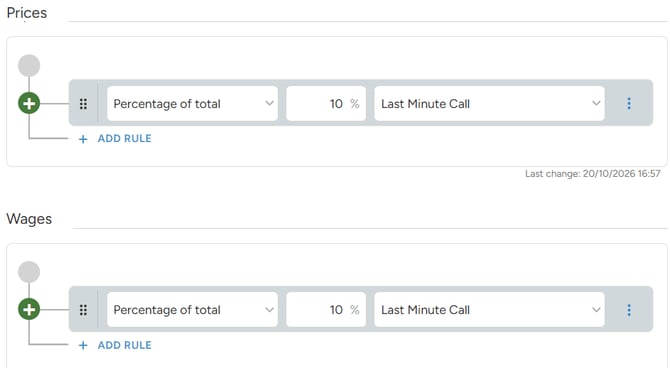
Example:
- Tag "Own car", Wages: Flat rate, €10
- A staff member's attendance gets the "Own car" tag.
- The staff member gets €10 extra.
Use a negative percentage for a discount, for example -5%.
When the rules are applied
When you add a tag to a position or shift, the tag's current price and wage rules are copied to it.
- Attendance tags take over the rules of the position tag.
- Changing the tag later does not change positions that already have it.
If you change a tag's rules, the new rules are used only where you add the tag from now on. Positions that already have the tag keep the old rules.