
In the builder, you find these conditions under Shift & Position. They are available in wagelists and pricelists.
Beginning conditions
- Position beginning: when the position is planned to start.
- Attendance beginning: when the staff member actually started.
The condition matches if the start time falls into one of your time windows.
Example: Attendance beginning Any of Saturday and Sunday, Entire day → weekend shift rate.
Overlap conditions
- Position overlap: any part of the planned position falls into the time windows.
- Attendance overlap: any part of the actual attendance falls into the time windows.
Example: Attendance overlap Any of every day 22:00 – 00:00 → the rule applies to shifts that run into the night.
Just touching the edge is not enough. A shift that ends exactly at 22:00 does not overlap a window that starts at 22:00.
For open shifts with no attendance yet, attendance conditions use the planned position times.
How to set the time windows
- Choose the operator: Any of (the time falls into a window) or None of (the time falls outside all windows).
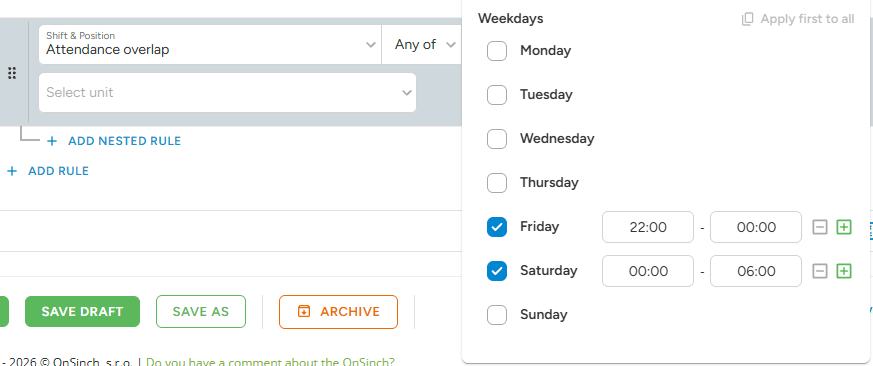
- Open the value field. You see the days of the week.
- Tick a day. It is set to Entire day.
- To use your own times, click + next to the day and choose the start and end time.
- Use Apply first to all to copy the first day's times to all days of the week.
A time window cannot run past midnight. For a night window, split it into two: for example Friday 22:00 – 00:00 and Saturday 00:00 – 06:00. An end time of 00:00 means midnight.
National holiday condition
The condition Attendance beginning on national holiday checks if the staff member started work on a national holiday, no matter which day of the week it is. If there is no attendance yet, the planned start of the position is used.
- Choose the condition Attendance beginning on national holiday.
- Choose the operator: Any of (the shift starts on a holiday) or None of (the shift does not start on a holiday).
- Select the Country. The list of holidays for that country loads automatically.
- Untick any Public holidays you do not want to count.
- Set the Times. Use Entire day or set your own time window (for example 06:00 – 22:00).
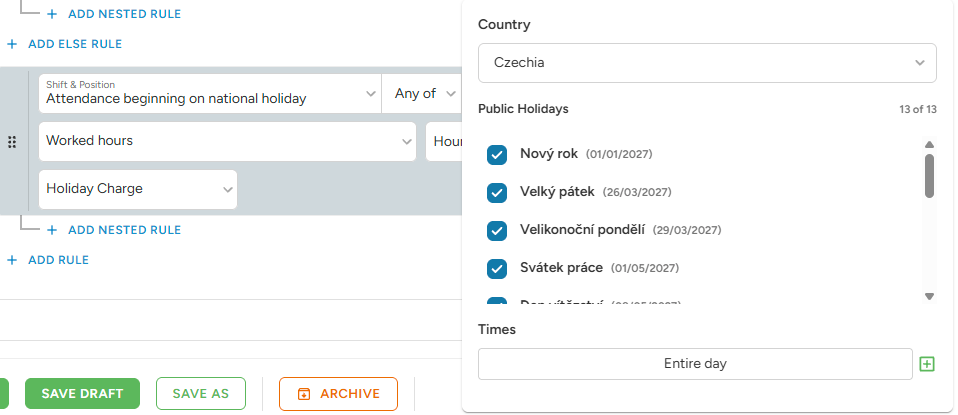
Holiday dates are maintained by OnSinch. You can untick holidays, but you cannot add your own dates. If you need a date that is missing, please contact our support team.
Example: Holidays are paid like Sundays, €25 per hour instead of €20.
- Rule 1: Attendance beginning on national holiday Any of Czechia, Entire day → €25 per hour, Worked hours.
- Else rule: Always apply → €20 per hour, Worked hours.
Result: A shift that starts on 24 December is paid €25 per hour for all worked hours. Any other shift is paid €20 per hour.
A day that is not an official holiday (for example 31 December in Czechia) never matches. For such days, create a separate ratelist and use it only for those shifts.
Condition or custom unit?
Time conditions work like a gate. They only decide if the rule applies. Once the rule applies, the unit decides which hours are paid or charged.
- Attendance overlap with a night window + unit Worked hours → if the shift touches the night, all worked hours get this rate.
- National holiday condition → if the shift starts on a holiday, the whole shift gets the holiday rate, even the hours after midnight.
If you want to pay extra only for the night hours or only for the hours on the holiday, use a custom unit instead: Time range or National holidays.
Read more about ratelists
- Ratelists: Condition operators
- Ratelists: Schedule conditions
- Ratelists: Nested and Else Rules
- Ratelists: Custom units [LINK - article not published yet]