
Opening the Calculator
Click Open calculator below the rules. The Calculator uses what’s on your screen, including unsaved changes, so you can test as you build.
Running a test
- Fill in Start and End of the planned shift. By default, it starts now and lasts 6 hours. Use the Duration toggle to enter the shift length instead of the end time.
- To test what was actually worked, turn on Toggle attendance times and fill in Arrival and Departure.
- Choose Profession.
- Check Role, Rating and Shift size. They’re required and pre-filled, so change them only if you want to test a different case.
- Fill in any other fields you want to test, for example Badge, Contract or Attendance payout method.
- Click Calculate.
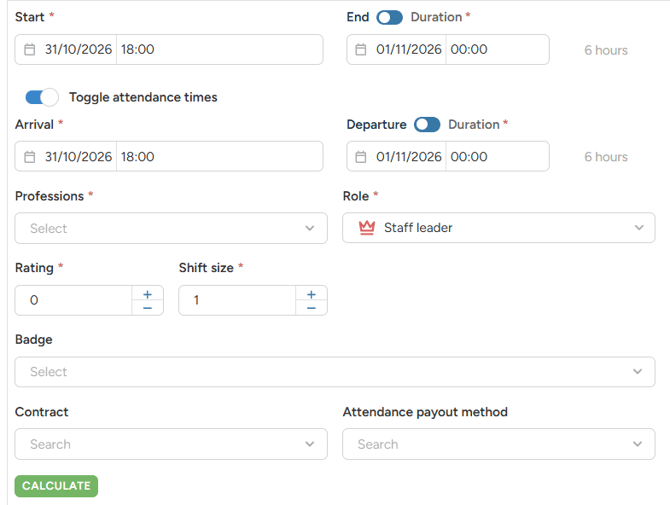
Note: The available fields depend on the ratelist type. Wagelists, pricelists and transport lists each have their own set of calculator fields.
Reading the results
Under Calculation results, you see each Component with its Unit, Amount and Total.
- The rules that were used turn green in the rule tree.
- Click on the Target icon on a calculation results line to jump to that rule.
- If a rule is incomplete, you see “Invalid rule definition,” and the editor jumps to the field you need to fix.
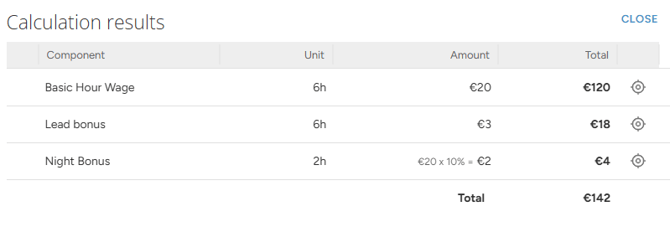
Note: The Calculator always calculates for one person. Shift size only checks rules that depend on the number of people in the shift. It doesn’t multiply the result.
Testing overtime
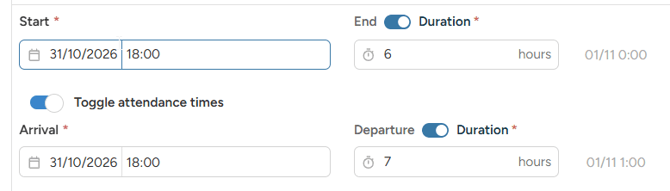
The Start and End fields are the planned shift. Toggle attendance times adds Arrival and Departure, which are the time actually worked.
Use them together to test cases where the plan and reality differ:
- Overtime: set Departure later than End.
- Early finish: set Departure earlier than End.
- Late arrival: set Arrival later than Start.
This way you can check that Planned hours, Worked hours and Overtime rules calculate the way you expect.
What the Calculator can’t test
- Breaks: it always calculates without a break.
- Profile attributes and personal attributes.
- A specific staff member (by name)
Tip: Test each branch of your ratelist. Change one field at a time, for example Rating or Role, and check which rule turns green.
Read more about ratelists