
1. Navigating to Settings
- Go to Settings → Finances → Ratelists.
- Select the Wagelists tab.
- Click the ADD RATELIST button on the right side of the page.
💡Tip: Have your full wage structure and supplements ready before you begin so you don't miss any important part.
2. Wagelist header
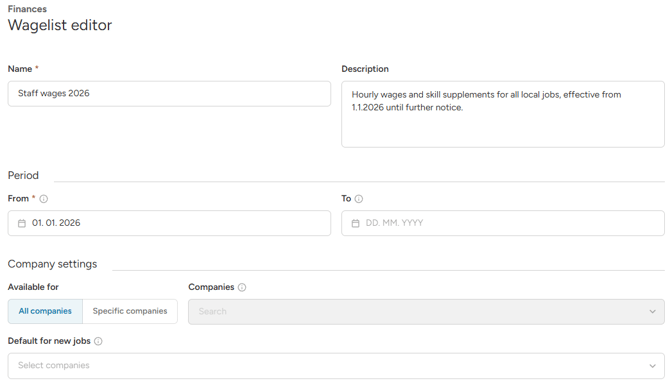
- Name: Give the list a clear, descriptive name to make selection easy (e.g., Staff wages 2026). This name is visible only to admins.
- Description: An optional handy field for internal notes. Use this field to record details about what this wagelist covers. Like the name, this is only visible to admins.
- Period (From / To): These dates help you identify which wagelist to use for specific timeframe, as they are shown in wagelist selection. This also allows you to prepare next year's rates in advance while still using your current rates as needed.
Note: These dates are not hard restrictions, just guides. The system will still allow you to use a wagelist outside of it set dates.
- Company selection:
- Available for all companies: Wagelist will be available for all jobs for all companies in your OnSinch system.
- Specific companies: Wagelist will be only offered as available for companies you pick here.
- Default for new jobs: If you select company here, this wagelist will be automatically pre-selected for every job created for that company.
3. Adding a first rate Rule
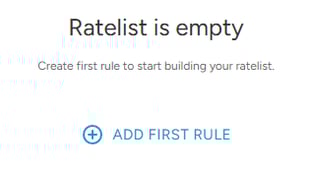
-
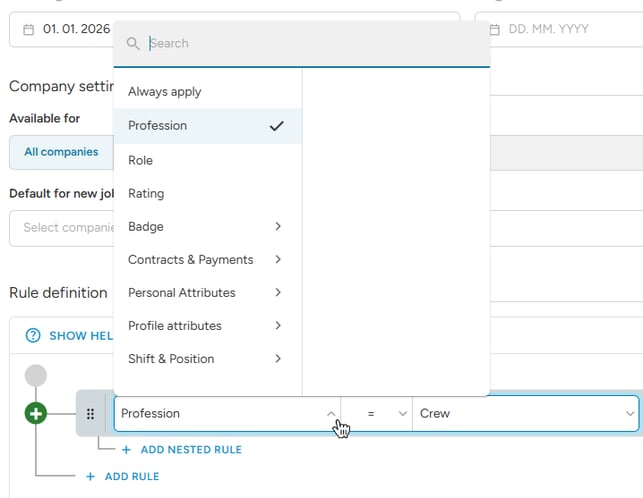
Set a Condition (The "If")
-
Choose your main starting point and add your first condition. Usually it is Profession or Role, but it can be any other condition such as Rating or Contract, depends on your rate structure.
-
Example: Condition is set for Profession - Crew.
-
-
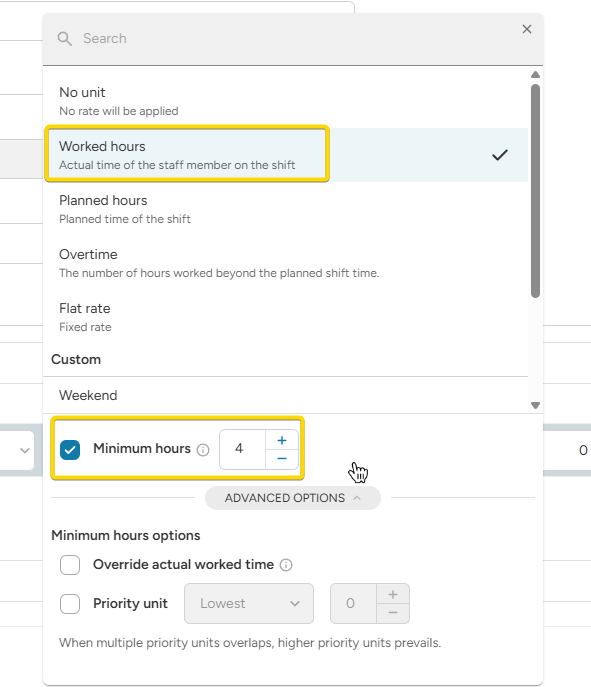
Select Unit type (The "When")
-
Choose how to measure the work - Worked hours, Planned hours, Overtime, Flat, or Custom units.
-
Example: Staff are paid hourly, with 4-hour minimum call guarantee.
-
-
Enter the Rate (The "How much")
-
Enter the financial value calculated per unit. It can be an hourly rate, a flat rate or % of some other rule.
-
Example: The rate is €20 per hour.
-
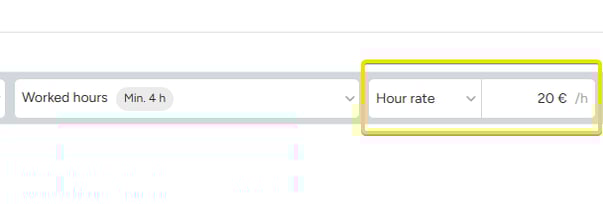
-
Create a rate Component (The "What")
-
The name displayed on wallet movements, visible to both admins and staff and included in exports and the API.
-
Example: Component name of this calculated rate is "Base".
-
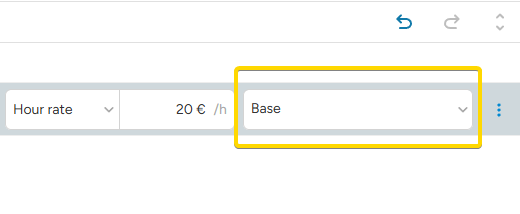
Result: When a staff member is working as Crew, they earn €20 for every worked hour (min. 4 hours) and the final amount is labeled as Base.
❗When using a Flat rate with Standbys, the rate will always be applied if the condition is met - even if the standby person does not end up working.
4. Adding and connecting more Rules
Most wagelists require adding multiple rules and their connections. First, decide if a new rule is connected to an already existing rule or if it is a stand-alone rule.
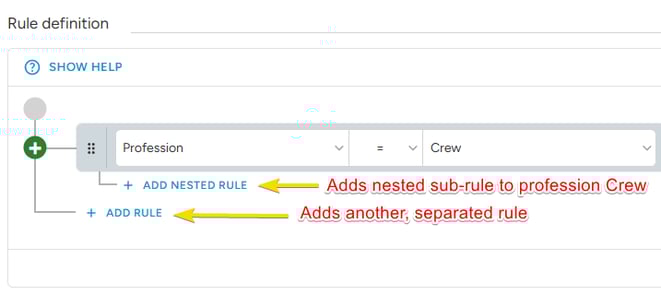
Stand-alone rule
Evaluated independently of other rules. Use when you have a completely separate rule that doesn't rely on another condition being met first.
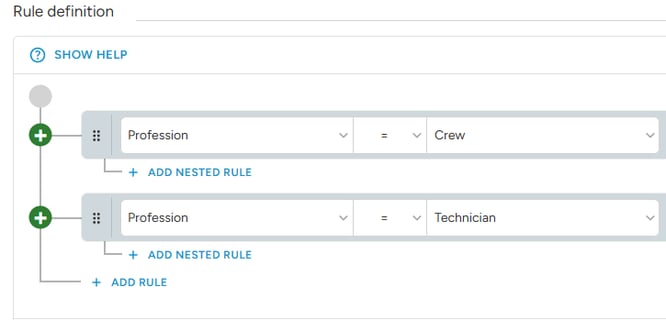
- Example: Technician profession is paid differently than Crew. A separate rule is needed for that profession.
- Result: When the system checks how much to calculate, it first identifies the profession. If it is Crew, it applies only those rates; Technician rates are ignored, and vice versa.
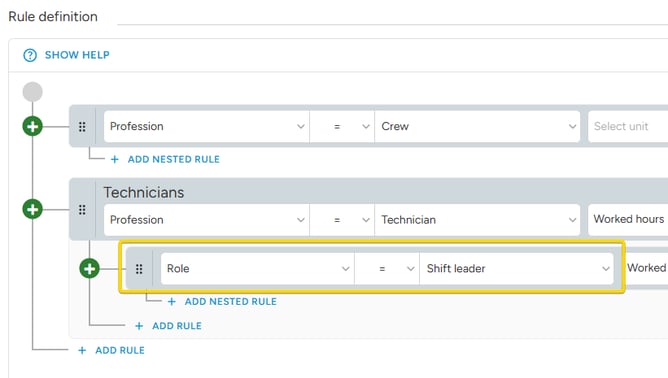
Nested rules ("And also if..")
Use Nested rules to stack conditions on top of each other.
- Example: Lead technicians get a bonus on the top of their base wage. If the profession is Technician AND the Role is Shift leader, the system applies a lead bonus.
- Result: When role is not Staff leader, only first Technician rule is applied. When the role is Shift leader, both the base Technician rule and the nested rule are applied.
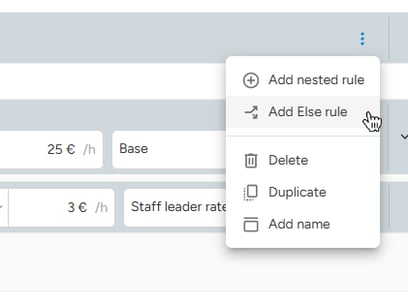
Else rules ("If not, then...")
An Else rule is a fallback rule that applies only if the primary condition is not met.
-
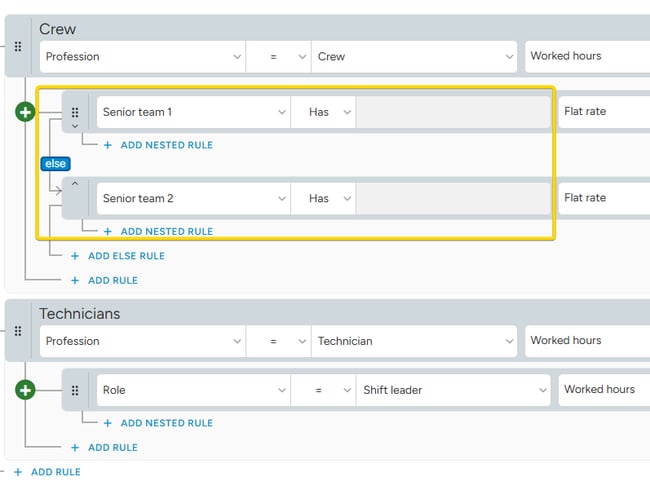
Example: There are two groups experienced staff marked with different Badges. These groups get different bonuses on the top of their base wage when working as Crew.
-
Result:
- Staff without any senior badges gets only the Crew base (the first rule).
- Staff with senior badge get a bonus based on the badge in their profile at the moment the shift is closed.
- These badges are not relevant for wage calculation when they work as Technicians; they apply to Crew wages only because they are nested under the parent rule Profession - Crew.
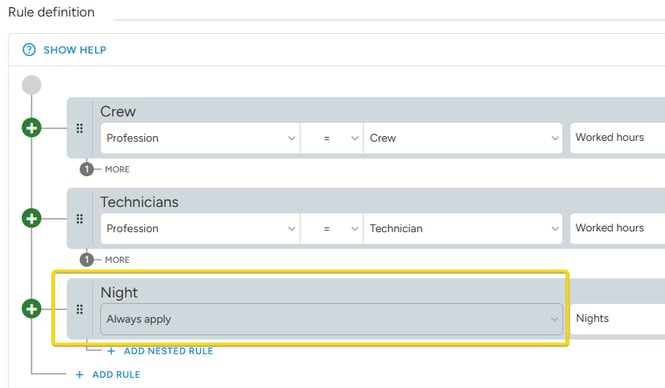
Always apply
Use this option when a Rule should trigger unconditionally, always. This is a "catch-all" condition that is always TRUE. Perfect for logic that should apply to everyone regardless of other conditions, such as a universal night-hour bonus.
-
Example: Night work units should always be checked and the rate added if applicable, regardless of any other condition.
5. Testing your logic with the Calculator
Before you finish and start using your new wagelist, use the Calculator in the bottom-right corner of the page to test your rules against various scenarios. This is the best way to ensure your set logic works exactly as it should and the final rates will be correct.
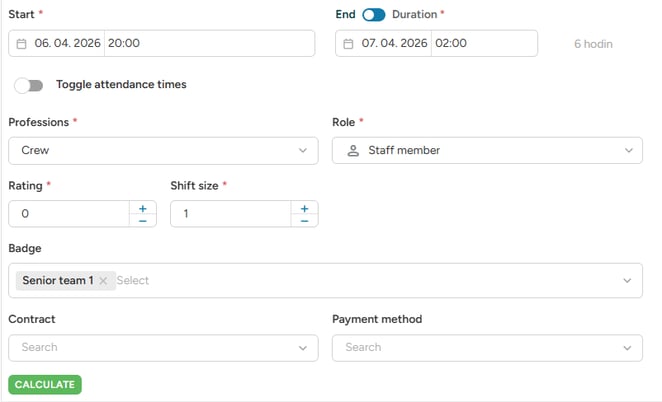
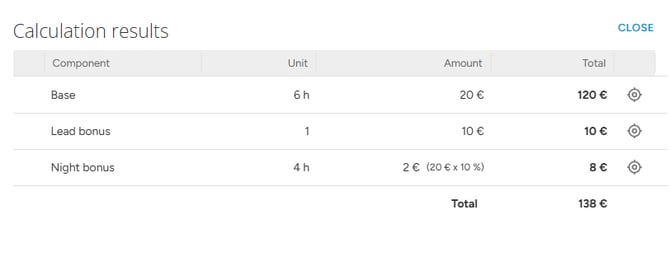
The system always shows you a full breakdown of the estimate final wage calculation. It also highlights the specific rule rows whose conditions were met, so you can see exactly which path the system took to calculate the final rate.
6. Save & publish
When you are ready and your wagelist includes all your rates for staff work, simply click the Publish button. The wagelist will then be available for use.
Not ready yet? Save the wagelist as a draft and get back to it later.
💡Tip: Add a names to your main rule rows for easy navigation within the wagelist.