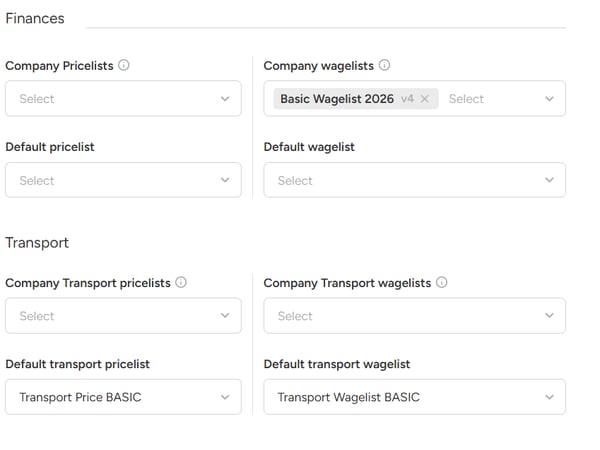
Available for
In the ratelist editor, open the Company settings section.
Under Available for, choose:
- All companies: every company can use the list.
- Specific companies: only the companies you pick in Companies can use it.
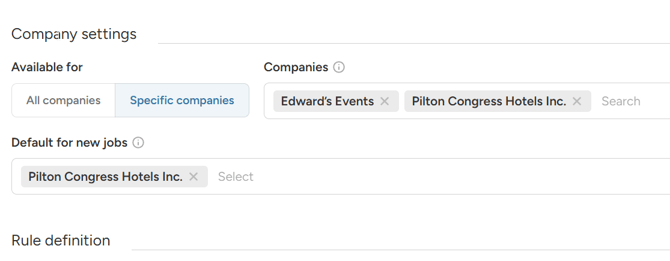
Default for new jobs
In Default for new jobs, pick the companies for which this ratelist should be pre-selected when you create a job.
- It replaces any default the company had before.
- If the list is for specific companies, you can only choose from those companies.
The global default
Each ratelist type can have one global default. It is used for all companies that have no default of their own.
To set it:
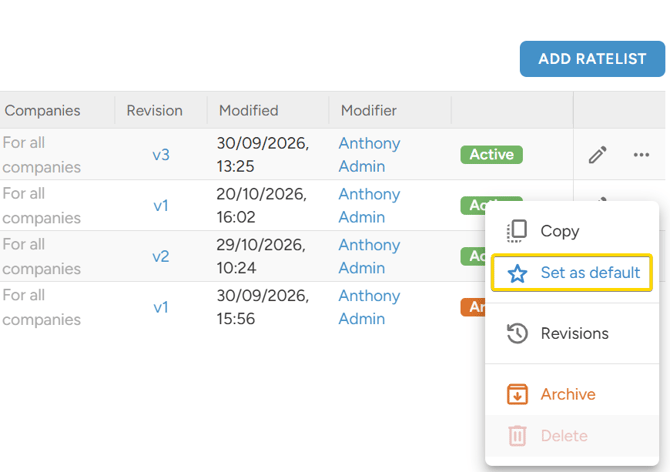
- On the Ratelists page, open the row menu of an Active ratelist.
- Click Set as default.
- Confirm the dialog Set ratelist as default.
What happens:
- The list becomes available for all companies.
- Its current company links and company defaults are removed.
- It is used as the default for all companies without their own default.
There is no button to remove the global default, and the default ratelist cannot be archived. To change it, set another list as default.
Which default is used on a new job
- The company's own default.
- If there is none, the global default.
- If no ratelist is set as the default, the admin must pick one from the offer dropdown when creating a job.
Managing ratelists from the company page
Open the company detail page and go to the Ratelists tab. You see a table for Wagelists and Pricelists, and for Transport wagelist and Transport pricelist if you use transport.
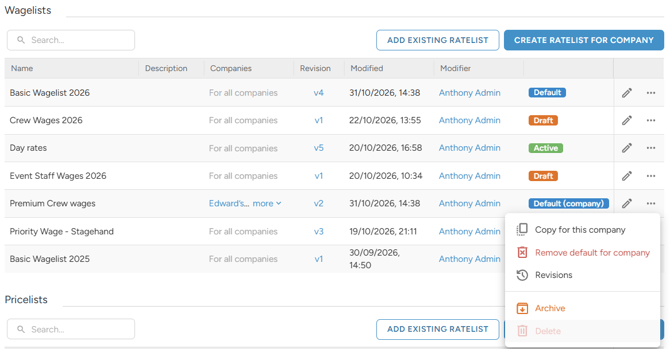
Here you can:
- Add existing ratelist: make lists available for this company. Only lists that are limited to specific companies are offered.
- Create ratelist for company: create a brand new list for this company from scratch or create a new one by copying an existing ratelist.
- Set as default for company and Remove default for company.
You can also set the defaults in the company edit form, under Finances.