
Where you do it
In the closing form, go to the step Budget closing. Each staff member has a row with their Price and Wage.
The amounts are calculated by the ratelist of the position. You can change them for one person:
- use a different ratelist for this person,
- or change a rate of this person, for example the hourly wage.
Changing the ratelist for one person
- Click the Price or Wage amount of the staff member.
- The Override rates window opens.
- In Attendance ratelist, choose another pricelist or wagelist.
- Check the rows and the Total.
- Click Confirm.
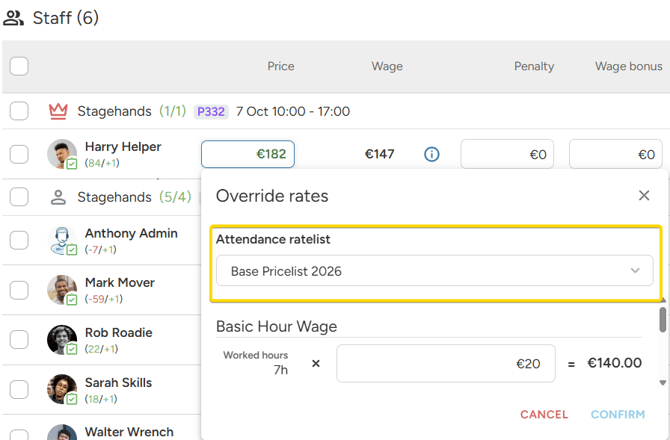
Example:
- The position uses wagelist "Event Staff Wages 2026".
- One staff member worked under a special agreement in "Crew Wages 2026".
- Click their Wage, choose "Crew Wages 2026" in Attendance ratelist and confirm.
- Only this person's wage is recalculated with the other wagelist.
Changing a rate for one person
- Click the Price or Wage amount of the staff member.
- In the Override rates window, find the component, for example "Basic Hour Wage".
- Change the rate, for example from €20 to €22 per hour. The number of hours stays as calculated.
- Click Confirm.
Changed values are blue and marked with an asterisk (Modified). Amounts that use individual rates are shown in blue in the table.
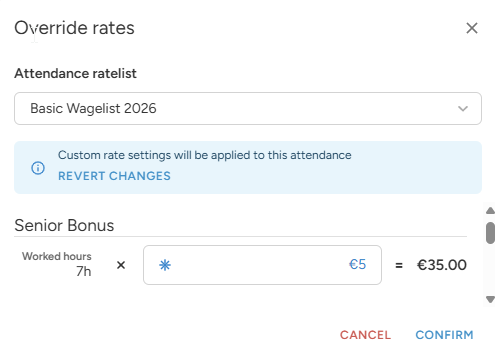
You can change only the rates the ratelist calculated. You cannot add a new component here.
For a one-time extra or deduction, use the Wage bonus or Penalty columns of the closing form.
Good to know
- Your change is saved right after you click Confirm, not when you finish closing.
- The change applies only to this attendance. The ratelist itself does not change.
- If you change the attendance times later, the wage is recalculated with your changed rates. They are kept.
- To undo the change, open the window again and click Revert changes. The person goes back to the position's ratelist.
- Break penalty rates cannot be changed here. They follow the rate they are calculated from.
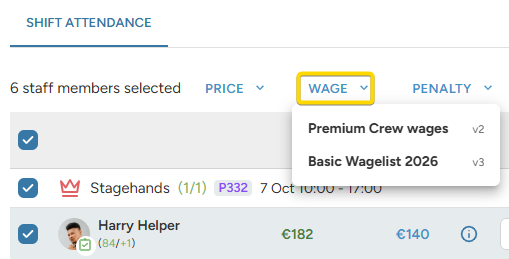
- With the bulk buttons Price and Wage, you can give several selected staff members the same ratelist at once.
If you later reopen the shift and change or migrate the ratelist of the whole position, all its attendances switch to it. Individual changes made in closing are lost.