
Adding rules
A new ratelist shows "Ratelist is empty". Click Add first rule to start.
- Add rule: adds a rule at the same level.
- Add nested rule: adds a rule inside a rule.
- Add Else rule: adds an "if not, then" rule. The rules of the group are separated by an "else" label.
Learn more about nested and Else rules here.
The row menu
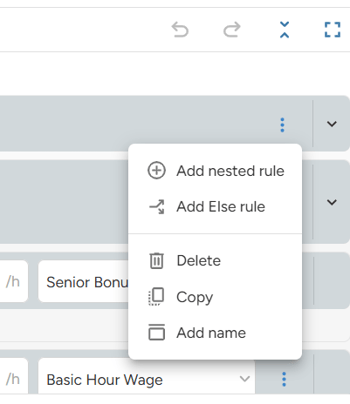
Open it with the ⋮ button, or right-click the row.
- Add nested rule and Add Else rule
- Delete: removes the rule.
- Copy: duplicates the rule.
- Add name: gives the rule a name, for example "Drivers". Names help you find your way in long ratelists.
Moving rules
- Hold the drag handle for a moment.
- Drag the rule to its new place.
- Drop it between two rules, or onto a rule to nest it inside.
In an Else group, dragging the first rule moves the whole group. To change the order of the Else rules, use the small up and down arrows.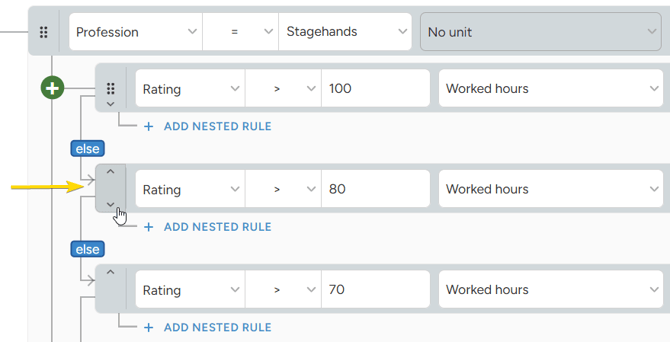
The toolbar
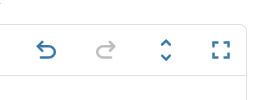
- Show help / Hide help: short help slides that explain the editor.
- Undo changes / Redo changes
- Fold all / Unfold all: collapses or expands all nested rules.
- Fullscreen: shows the editor over the whole screen.
Use Fold all on long ratelists to see the main structure first. Then open only the part you want to change.
Unsaved changes
While you work, the footer shows "Unsaved changes". Your browser keeps them for 1 day. When you open the ratelist again, "Continue editing?" asks if you want to continue.
Unsaved changes are kept only in the browser you used. Save your work before you leave.
When your rules are ready, test them with the Calculator.