Job/Shift Filters
Full-text search
When you're managing a large volume of planned shifts and need to locate one quickly, use the full-text search bar at the top of the Job/Shift filter panel. You can search by a shift's name or its code to jump straight to the result without scrolling through the entire Scheduler. In full-text search bar you can searchby name(ID) of order, job, shift, position, name of a company, name of supervisor, name in contact list, address, city and order manager.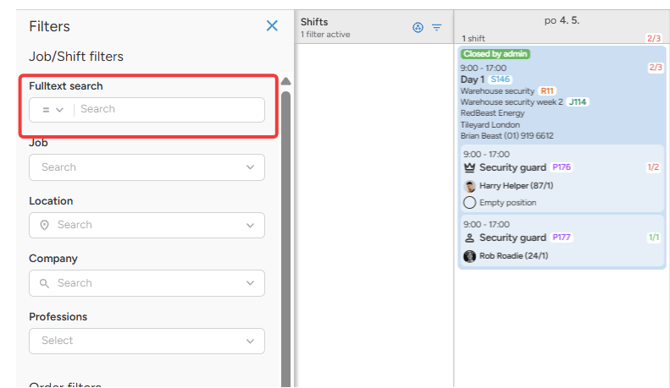
Shift & Job attribute filters
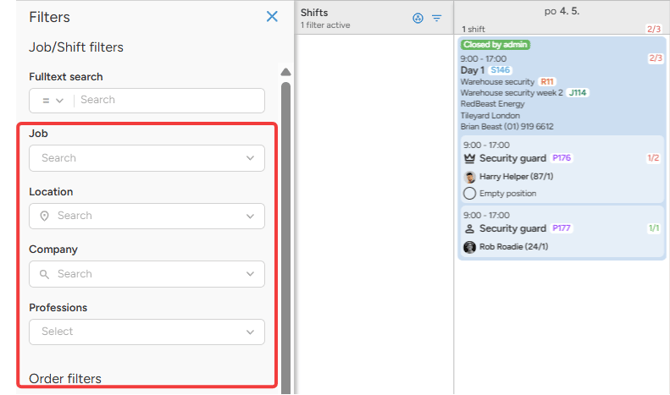
Narrow down the shifts displayed in Scheduler using the following attribute filters:
- Name - filter by the name of the job or shift
- Location - show only shifts taking place at a specific location
- Client company - filter by the company the job is associated with
- Profession - display only shifts requiring a specific staff profession
💡Tip: These filters are especially useful when you want to focus on a particular job type or check coverage for a specific role across your schedule.
Order filters
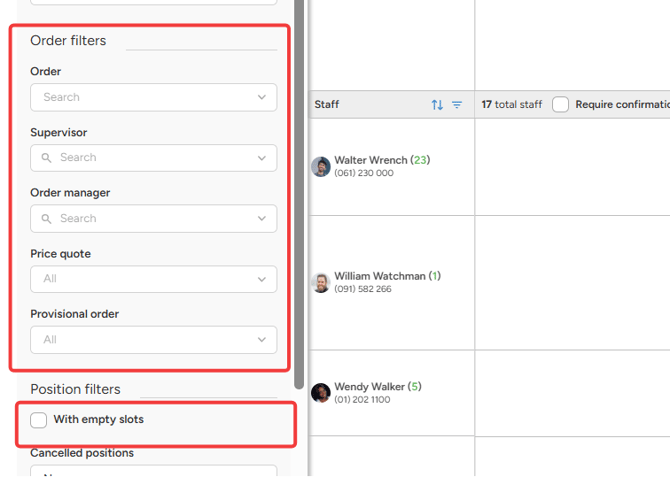
You can apply the same filtering logic to your planned Orders. Available order filters include:
- Order name - search for a specific order
- Supervisor - filter by the assigned job supervisor
- Order manager - filter by the responsible order manager
- Price quote status - show only orders with an issued price quote
- Provisional order status - show only orders marked as provisional
💡Tip: This is particularly helpful when you need a quick overview of orders at different stages of the workflow.
Position filters - empty slots
One of the most practical filters in Scheduler is the "With empty slots" checkbox under Position filters. Enabling it instantly pre-filters all orders that still have unfilled positions, giving you a clear picture of where staff still needs to be assigned.
💡Tip: We recommend saving this as a dedicated view so you can open it with one click whenever you need to identify gaps in your staffing.
Position status filters
Use the position status filter to sort positions by their current state - cancelled, hidden, or locked. This is useful when you want to:
- Check which shifts or jobs are currently visible to your staff
- Identify hidden positions and drag & drop staff members into them directly from Scheduler
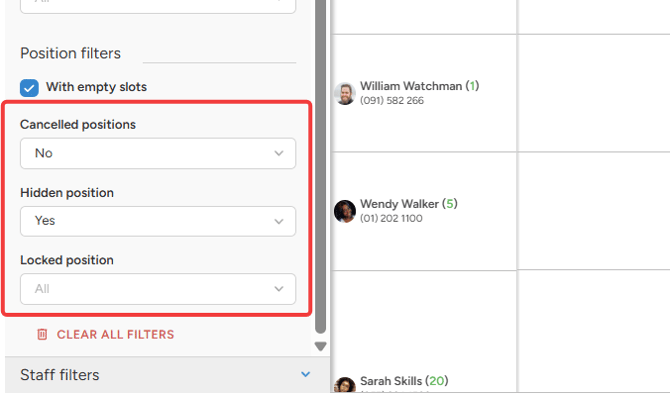
💡Tip: If you want to reset your view and remove all active filters at once, simply click the Clear all filters button. It removes every applied filter in a single click.
Staff Filters
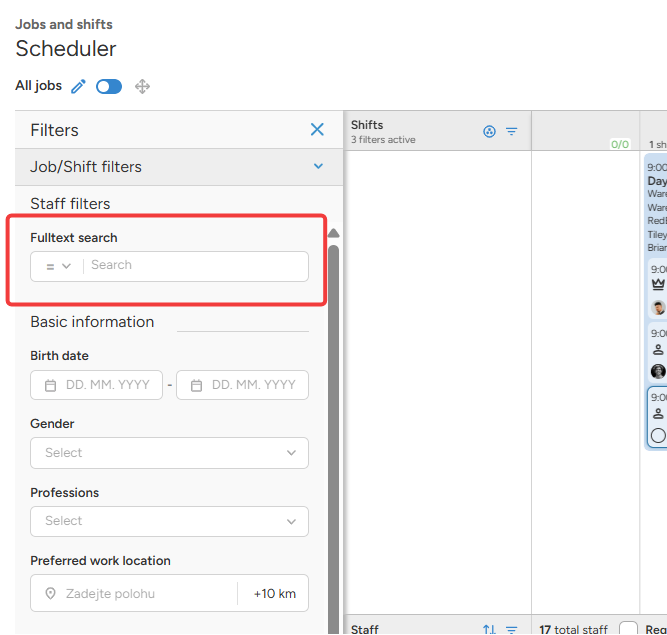
Full-text search
The Staff section includes the same full-text search bar as the Job/Shift section. Use it to find any staff member by name instantly - useful when you want to check their planned shifts or assess their current schedule before making an assignment.
Availability filter
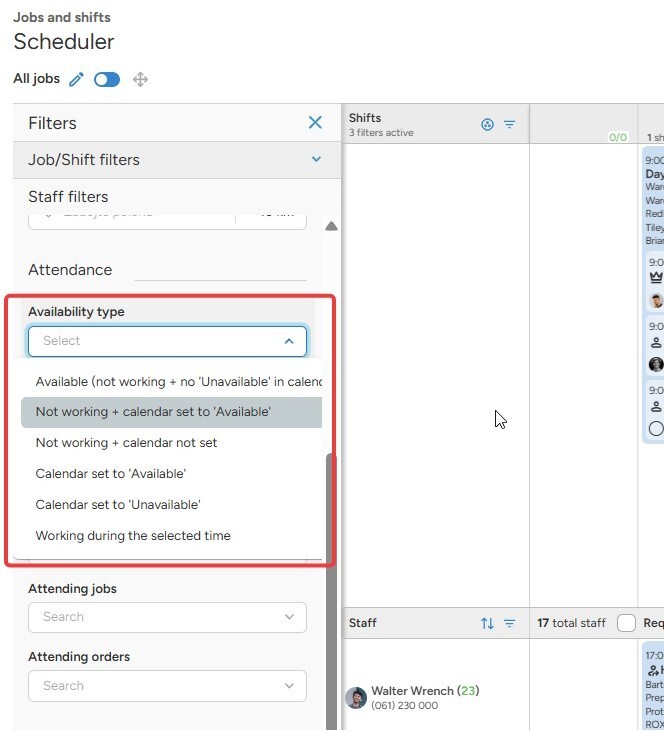
Under the Attendance section of the Staff filters, you can sort staff members by their availability based on their personal calendar. This lets you see at a glance who is free to work and who has marked themselves as unavailable.
Use this filter to:
- Quickly identify available staff for an upcoming shift
- Get an overview of your workforce's current capacity
- Avoid assigning shifts to staff who are already unavailable
💡Tip: We recommend saving this filter as a dedicated view so you always have an up-to-date picture of your workforce availability the moment you open Scheduler.
Profile filter
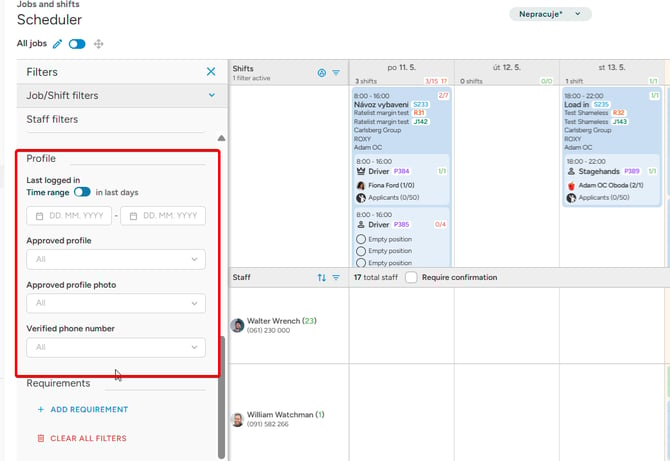
The Profile section lets you filter staff based on the verification status of key profile elements. You can sort by whether a staff member has an approved profile, an approved profile photo, or an approved phone number.
This filter is useful in two common scenarios:
- Before assigning to a job - filter for only fully verified staff to ensure you're scheduling people who meet your profile requirements.
- For follow-up - identify staff with incomplete or unverified profile items so you can notify them that they need to complete verification before they can be assigned to any shift.
💡 Tip: Save a view with the Profile filter set to show staff with missing verifications. This gives you a ready-made list you can revisit regularly to keep your workforce database clean and your staff assignment-ready at all times.
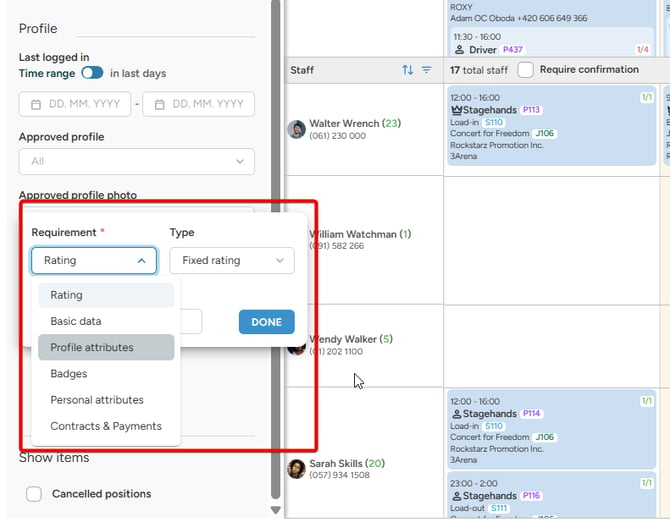
Requirments filter
Scheduler also allows you to filter by any requirements your staff members have on their profiles, so you can filter out your staff based on the following requirements
-
Rating - select a desired rating of your staff members
- Profile attributes - choose from any of the selected attributes on your staff members profiles
- Badges - search for a sort out your staff members based on a specific badge
- Personal attributes - choose from any of the selected attributes on your staff members profiles
- Contracts & Payment - looking for a way to sort out your staff members based on a specific contract or type of payment