
Optimizing your Scheduler view allows you to filter out noise and focus on the details that matter most for your workflow. Use the View Settings to toggle between high-level summaries and detailed timelines. Let´s go through basic view options in Scheduler.
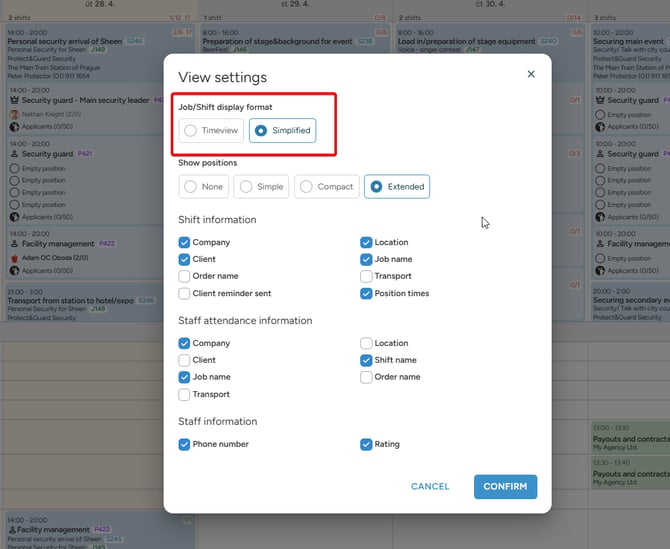
Choosing a display format or your Jobs/Orders
The display format determines how your jobs and orders are laid out across the calendar.
-
Timeview (Timeline): Displays jobs on an hourly horizontal axis. Use this to visualize the exact start time, duration, and end time of events at a glance.
-
Simplified (List): Organizes jobs into daily columns. Orders are stacked vertically and sorted chronologically (earliest first). This view provides a clean, vertical list of the day's agenda.
Show position Settings
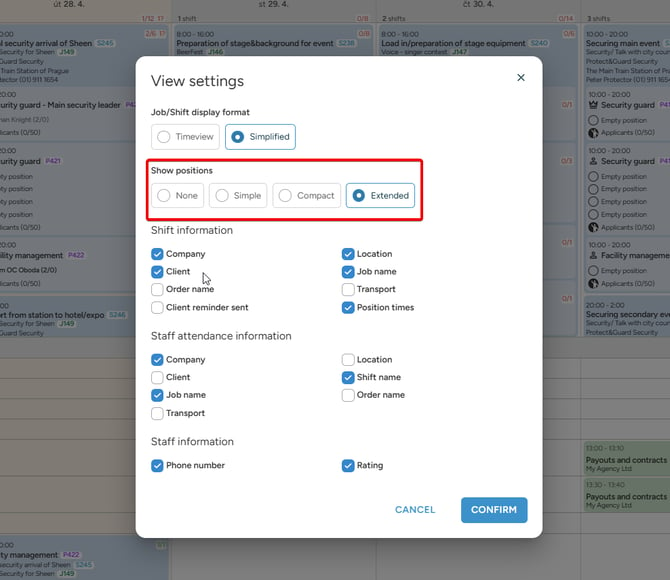
This setting controls how much detail you see regarding the staff and roles assigned to a job.
| View Mode | What You See |
| None | No position or staffing details are shown. In this view only you can not drag&drop staff member to any shift |
| Simple | Displays the position/job title and the number of staff members required. |
| Compact | Shows the position name plus small profile icons for assigned staff. Ideal for quickly checking if a shift is fully staffed. |
| Extended | The most detailed view. Displays positions, profile icons, and the full names of assigned staff members. |
Customizing Information Overlays
You can further refine what specific data points appear on your screen paired to each Job/Order without clicking into each job for details.
Shift Information
Select which Job/Order-specific details appear on the job cards. You can toggle visibility for:
-
Client name
-
Location
-
Shift/Order name
-
Additional custom job details
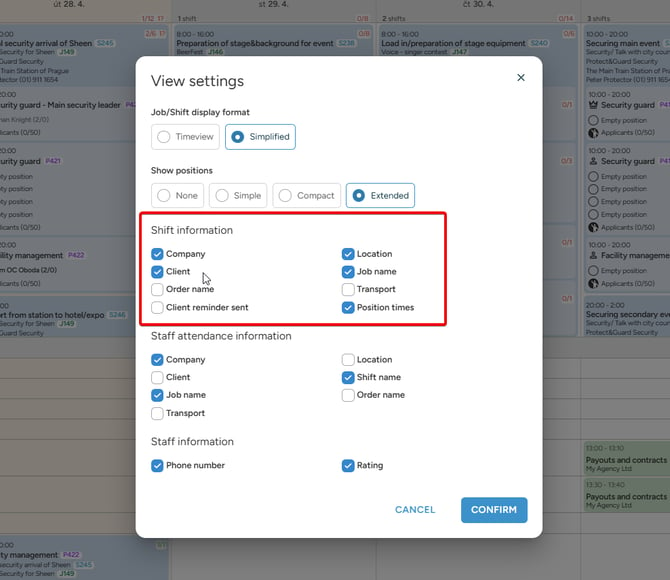
Settings of which information you can setup to have visible in Scheduler
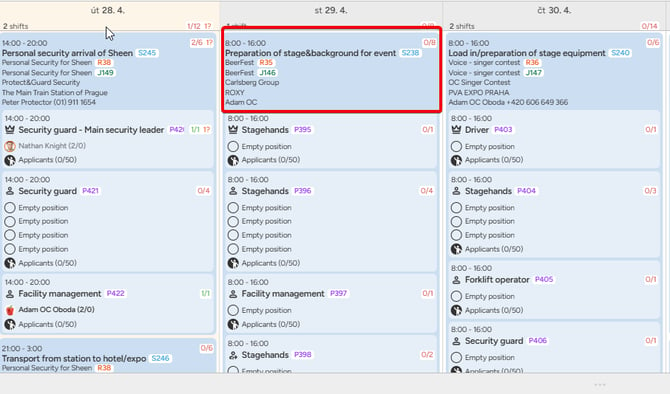
Preselected attributes visible on Job/Order level
Staff Information
Define which details appear next to staff members assigned to a shift. This helps you verify staff data (such as Order name, Location or staff Rating and Phone number) directly from the main Scheduler board. All those information are listed in Staff section under each staff member when signed for a shift. 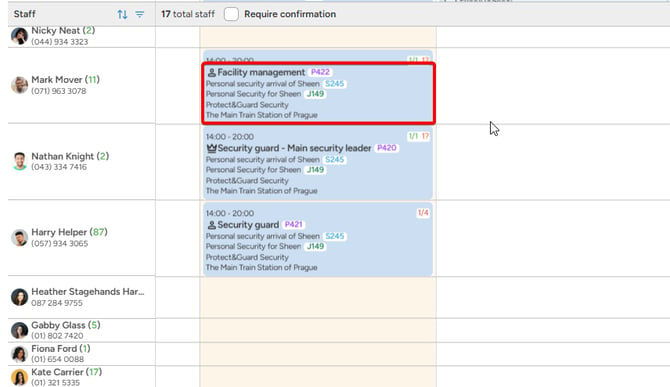
Saving Your Preferences
Once you have configured the ideal layout, you don’t need to set it up again every time you log in. You can use save function of Scheduler to save any preselected layout.
-
Save View: Click the "Save View" button located next to "View Settings."
-
One-Click Access: Your saved parameters will be stored, allowing you to switch back to your preferred configuration instantly.
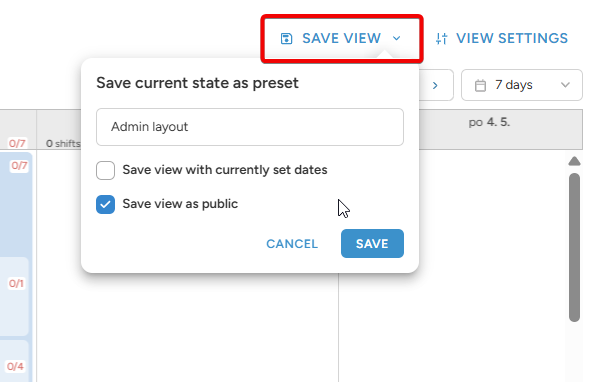
- Save view with currently set dates - this is useful to lock specific dates for some important event in your saved view, to have them reachable in one click
- Save view as public - this way your saved view will be visible and saved for all your admins
💡Tip: Create different saved views for different tasks - for example, use "Timeview" for logistics planning and "My Favourite Festival" to lock dates of your event in Scheduler.