
Terminology used
- Worked hours = how many hours the staff member worked. In closed shifts it reflects reality; in open shifts it is taken from the planned hours.
- Planned hours = for how many hours the position is planned.
- Overtime = hours that were eventually worked but not originally planned.
Scenario
A shift is booked by the client for 5 hours. The work eventually runs long, and the staff members end up working 7 hours - 2 hours more than originally planned.
You can configure your ratelists to have the system treat these unplanned hours differently in terms of price and wage. The system automatically compares the planned schedule against the closed (actual) attendance and can apply a different rate to the hours that were not originally booked.
Ratelists include built-in unit for Overtime.
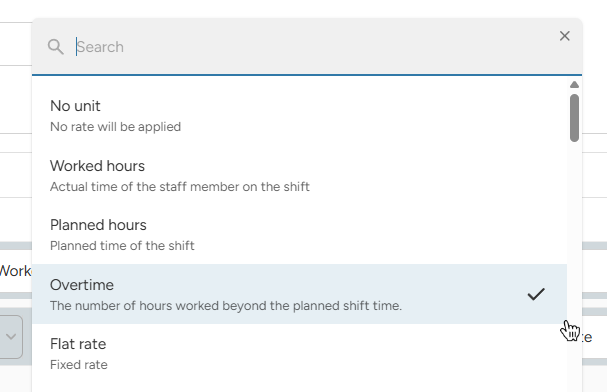
How to set up the Overtime unit
1. Add a surcharge on top of the hourly rate (addition)
Logic: The base hourly rate stays the same for all hours worked, and an extra amount is added on top for the hours that exceed the planned schedule.
Example: The shift is booked at €15 per hour. Once the shift runs long, a surcharge of +€1 per hour is added on top of the €15 base rate for the extra hours. The effective rate for an overtime hour is €16, but you want it shown as a separate addition - not merged into the base rate in exports and calculations.
How to set it up:
-
Set the rate rule for the unit "Worked hours" to €15 per hour.
-
Add another rate rule with the condition "Always apply," so the system always checks whether there is overtime, and set the rate for the "Overtime" addition to €1 per hour.

Result: The full 7-hour attendance will always use the hourly rate for Worked hours, plus an Overtime bonus of €1 per hour for any hours that weren't originally scheduled.
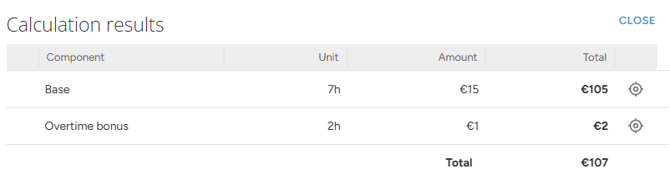
💡Tip: You can also set the overtime supplement as a percentage of the hourly rate, instead of a fixed top-up amount.
2. Use a different hourly rate for planned vs overtime hours (separate rate)
Logic: Instead of a surcharge on top of the base rate, the overtime hours get their own, fully separate hourly rate.
Example: The first 5 planned hours are paid at €15 per hour. Any hours not originally booked are paid at a separate rate of €16 per hour. You want these reported and displayed in documents as a distinct hourly rate, not as an addition to the base rate.
How to set it up:
-
Set the rate rule for the unit "Planned hours" to €15 per hour. This ensures the planned portion is always calculated at €15 per hour.
-
Add another rate with the condition "Always apply," so the system always checks whether there is overtime, and set a separate hourly rate for the overtime hours - in this example, €16 per hour.
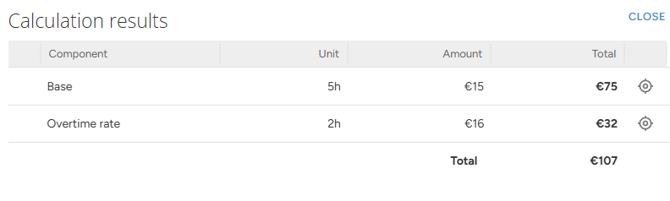
Result: The position's planned 5 hours are paid at €15 per hour, and the overtime hours are paid at €16 per hour.
When Overtime is calculated
Overtime units are always evaluated when the shift is closed - that is, when the actual attendance is confirmed against the original plan.