
1. Navigating to Settings
- Go to Settings → Finances → Ratelists.
- Select the Pricelists tab.
- Click the ADD RATELIST button on the right side of the page.
💡Tip: Have your full price structure and supplements ready before you begin so you don't miss any important part.
2. Pricelist header
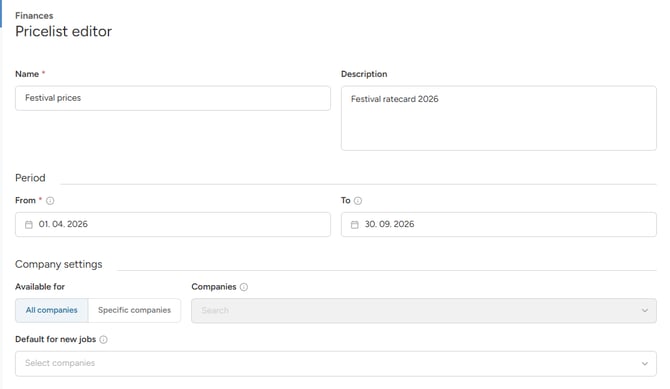
- Name: Give the list a clear, descriptive name to make selection easy (e.g., Basic pricelists 2026). This name is visible only to admins.
- Description: An optional handy field for internal notes. Use this field to record details about what this pricelist covers. Like the name, this is only visible to admins.
- Period (From / To): These dates help you identify which pricelist to use for specific timeframe, as they are shown in pricelist selection. This also allows you to prepare next year's rates in advance while still using your current rates as needed.
Note: These dates are not hard restrictions, just guides. The system will still allow you to use a pricelist outside of it set dates.
3. Adding a first rate Rule
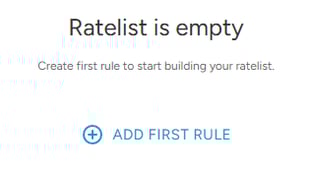
-
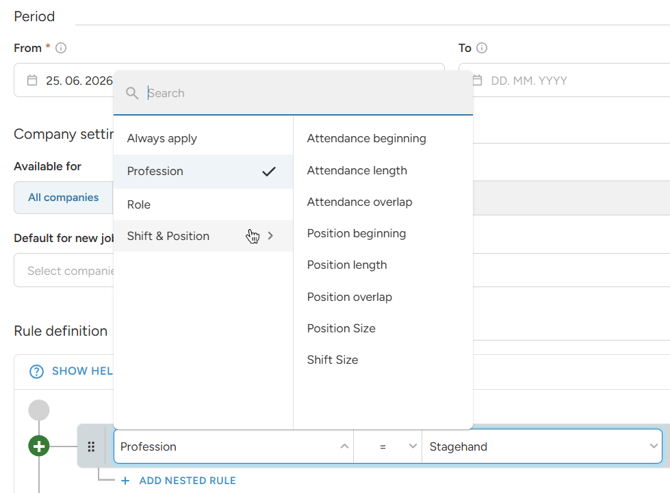
Set a Condition (The "If")
-
Choose your main starting point and add your first condition. Usually it is Profession or Role, but it can be any other condition such as Rating or Contract, depends on your rate structure.
-
Example: Condition is set for Profession - Stagehand.
-
-
Select Unit type (The "When")
-
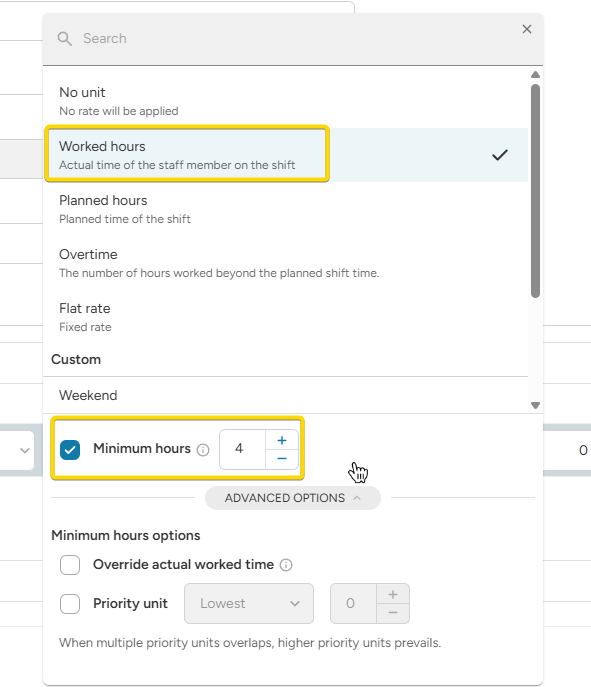
Choose how to measure the work - Worked hours, Planned hours, Overtime, Flat, or Custom units.
-
Example: Work is charged hourly, with 4-hour minimum call guarantee.
-
-
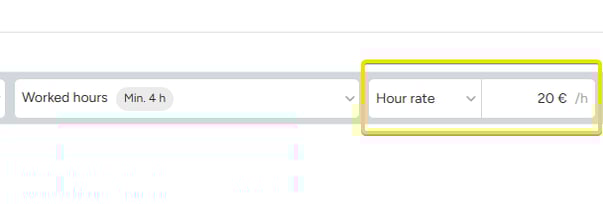
Enter the Rate (The "How much")
-
Enter the financial value calculated per unit. It can be an hourly rate, a flat rate or % of some other rule.
-
Example: The rate is €20 per hour.
-
❗When using a Flat rate with Standbys, the rate will always be applied if the condition is met - even if the standby person does not end up working.
-
Create a rate Component (The "What")
-
The name displayed on calculations, price quotes and other client-facing documents, visible to both admins and clients and included in exports and the API.
-
Example: Component name of this calculated rate is "Base".
-
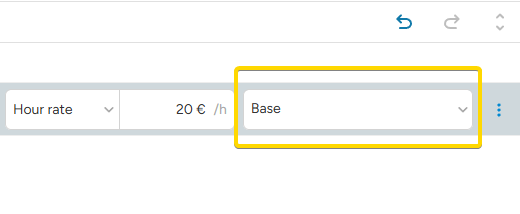
Result: When a staff member is working as Stagehand, client is charged €20 for every worked hour (min. 4 hours) and the final amount is labeled as Base.