Go to Work → Orders → To-Do or Staff → To-Do to see all your agency tasks.
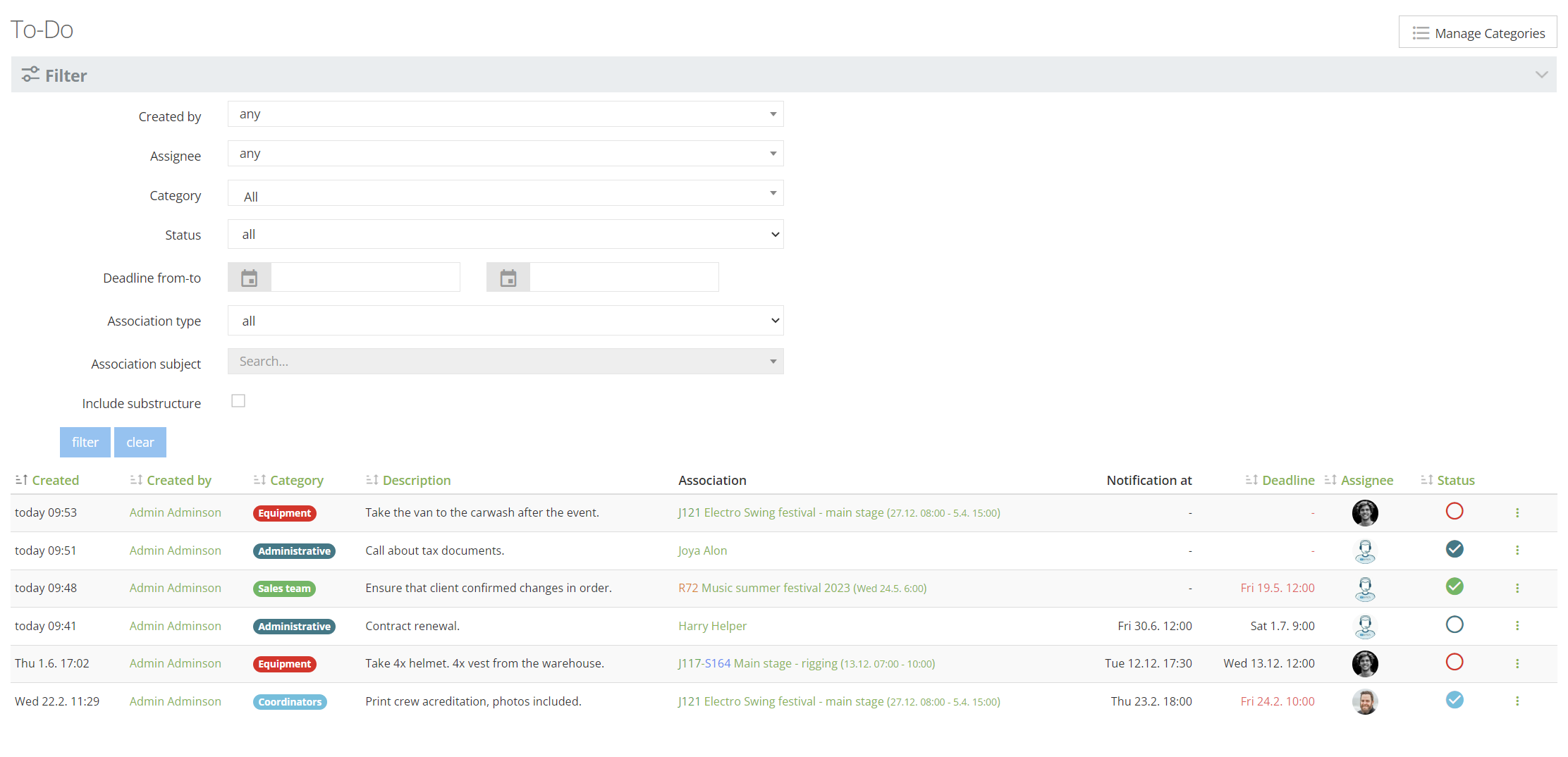
To-Do's can be associated to four record types in OnSinch:
- Staff member - e.g. for contract renewals, disciplinary actions, equipment returns
- Order - e.g. for invoice reminder or client follow up
- Job - e.g. for confirming who is the job supervisor
- Shift - for matter related to specific shift only; e.g. to secure equipment
Depending on which record the To-Do is associated with, it is shown accordingly. E.g. if the To-Do is connected with a staff member, it is displayed in their profile; if it is associated with an order, it appears on the order detail page and so on.
To-Do categories
You can organize your To-Do's to categories for easier filtering and visibility. Go to Settings → Other settings → To-Do categories to set them up.
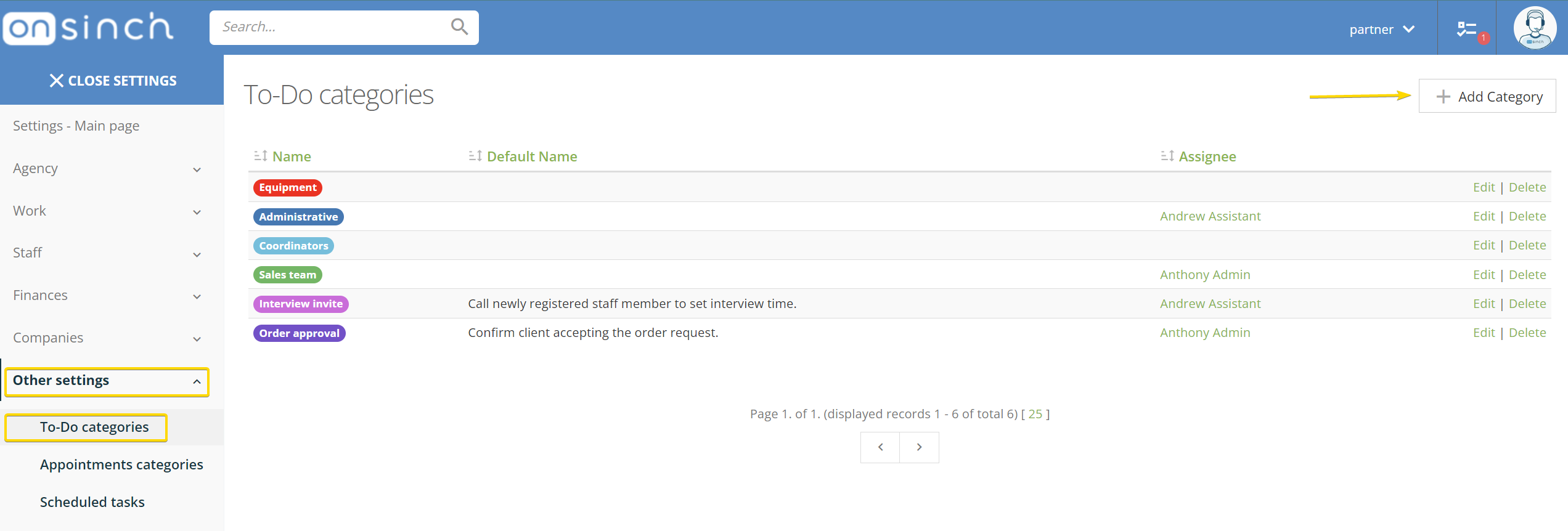
- Default asignee can be set to category - this admin will be automatically assigned when creating the To-Do. This is handy when always the same admin is responsible for certain tasks, e.g. contract renewals.
- Default note you can use to set default text that will be shown automatically as a To-Do description everytime you use the category - another more time saved for you!
Creating To-Do
To-Do can be created in staff member profile, order page, job and shift detail page:
To-Do can have exact deadline and notification (reminder email will be sent to assignee - check your agency setup in Settings → Notification settings).
💡Tip: Admins can create To-Do for somebody else - great for communication team flow without the need to inform about the task via different channels.
To-Do's have special widget on admin dashboard with direct clickthrough to the list of your tasks or tasks you created.

To-Do status and resolving
1. When To-Do is completed, admin tick the circle and mark To-Do as Resolved.
2. Pending open To-Do are shown with empty circle and have status To resolve.
3. If the To-Do was not resolved within the set deadline, it can be set as Unsuccessful. System shows you that the task is after deadline.
Use three dots button at To-Do to change status, edit or remove it.

My To-Dos
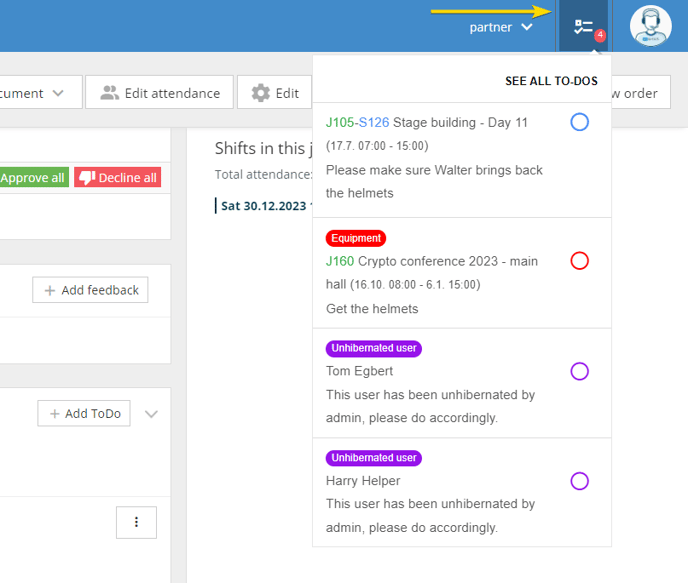
Each admin can see their pending To-Dos on the top right corner of the page next to their profile picture with clickthrough to list of all To-Dos assigned to them.