
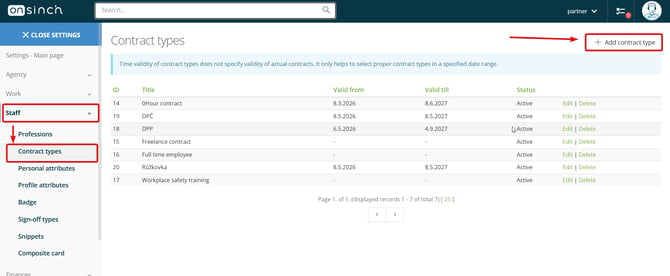
Go to Settings → Staff → Contract types to add, edit and remove contracts.
Contracts in OnSinch
You can easily keep track of which contracts and other documents you are signing with your staff members. Contract feature in OnSinch also allows you to do the payouts.
Creating contracts
Name your contract with title and add a description to be sure you always choose the correct one.
- Validity - you can set time validity of the contract to help you with better overview of your contracts (e.g. Freelance contract for 2023). The time frame applies for the contract type itself; it is not stating validity of actual contracts signed with staff members - this is done in staff member profile. Leave the field blank for setting the contract as indefinite.
- GDPR fields - selected fields will stay in the system archived in case staff member profile is deleted. First two columns include system attributes and in third column there are personal attributes.
- Contract template - depending on your need, choose from template types:
- None - Without any template, the created contract serves only as a record to be added to the staff member’s profile. This could be used when you signed the contract physically and now you are just telling the system that this person is under one.
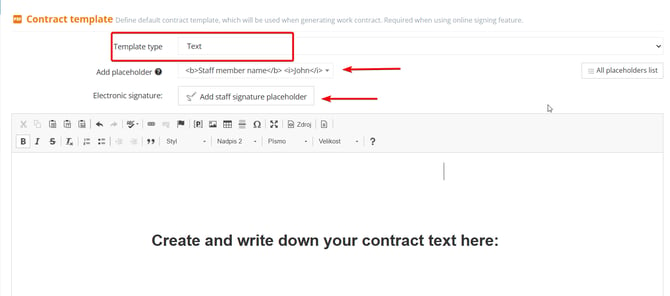
- Text - Useful for creating contract amendments or other short texted documents.
Use the set of placeholders to input the staff member's information into the contract.
-
- Document - Upload a document in a pdf format. Then from the selection of placeholders and other action buttons select the needed ones. The placeholders will be filled with information from staff member’s profiles once you add it to them.
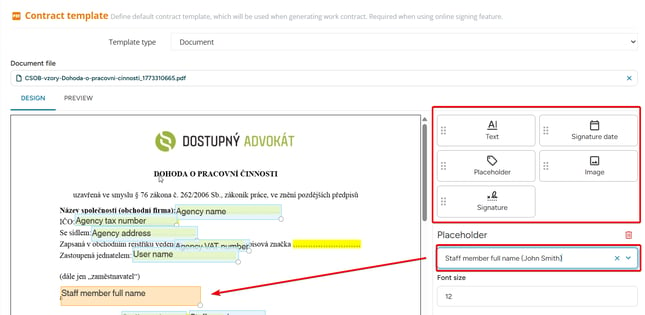
Always in adding contract type you can look to Contract template preview to see how does your created text or contract looks like in real time to make sure that is it complete and visually correct.
Enabling Signature-Based Contract Validity
Each contract includes a toggle to enforce validity starting from the exact moment a staff member signs it electronically.
Key Functionality:
- Restricted Shift Access: Staff members cannot assign themselves to or sign in for shifts until their contract signature is submitted.
- Admin Alerts:The system flags any staff member with a pending signature and immediately notifies admins that they're ineligible to work.
To sort out staff members whose signtures are in pending status and eg. send them reminders to sign that contract you can navigate to Contracts and use filter - Electronic signature status a set status as Pending. After applying you will have a clean list of staff members for whose signatures you are waiting.
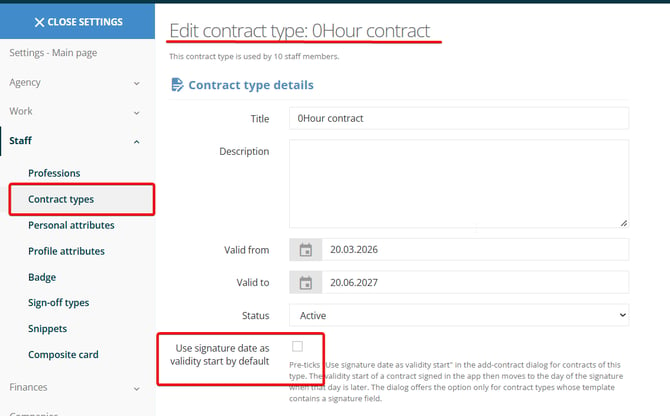
💡Tip: This feature can be used not only for employment contracts but also for other documents such as Health and Safety certificates.
💡Don't forget the final step! After creating a contract type, be sure to also create the respective payout method in order to be able to do the payouts of earned wages.
Once the contract is added to at least one staff member profile it cannot be deleted, only deactivated.
Assigning contract to staff members
Once you have contracts prepared the next step is to assign the contract to staff member so they can attend shifts under the contract and be paid for the work.
Go to staff member profile → basic tab → section contracts → add new one or take a look at overview about both active and inactive contracts. Each staff member can have more active contracts with different limits and validity.
💡Tip: Use appointment feature with allocated time slots for smooth and quick organisation of contract signing in person.
When adding contract you can specify exact time range of contract for particular staff member and also decide whether to generate contract from template (system will generate pdf document to print or pdf document that can be sent directly to staff member to be digitally signed), upload existing file or skip including the document.
✍️ Sign documents and contracts digitally with our e-signatures feature!
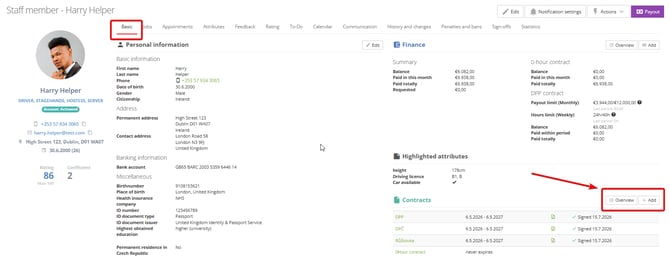
Staff member only with a valid active contract can sign up for shift by themselves. If more contracts are active, it can be decided for each shift individually under which contract a staff member will work on that shift.
Assigning contract to more staff members at once in bulk
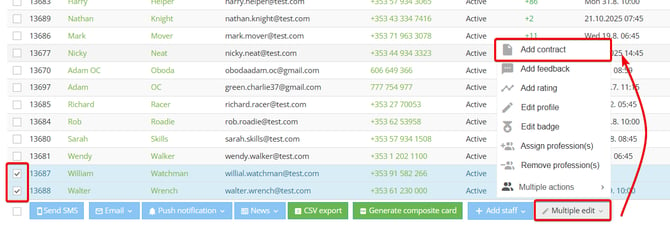
When using our e-signatures feature or when inserting only information about the contract without uploading any file, you can add one contract to multiple staff members at once from staff list.
Go to Staff → Staff list and select the staff members you want to send the contract to. On the bottom panel choose Multiple edit → Add contract.
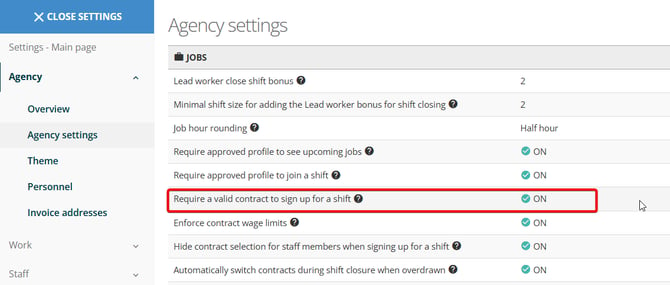
Valid contract as a requirement for joining a shift
If you want to make sure that only staff members with a signed contract will attend your shifts, navigate to Agency settings > Turn ON the requirement.
Make sure that the assigned contract is tied to an active payout method!
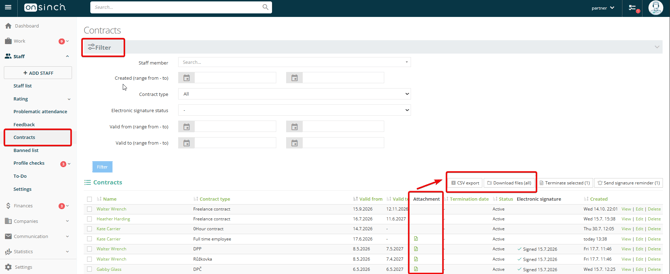
Contracts page
Check and manage the contracts from the contracts page in the menu > Staff.
You can filter the needed contracts based on creation date, validity or electronic signature status.
Either download the attachments in a ZIP file or export other contract information.
Improved Contract Tracking
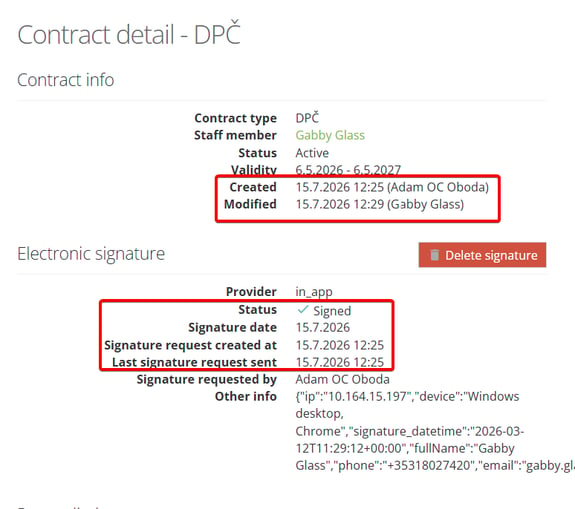
Contract module - Contract detail provides better oversight of contract informations and gives you administrative control of each contract.
- Expanded Details: The Contract detail view includes Created/Modified dates and the names of the Creator/Modifier for full auditability and trackability.
- Signature Tracking: The Contracts index displays the exact date and time a contract was sent for signature (e.g., Sent for signature 16.8.2025 20:15).
- Efficiency: These changes make it significantly easier to identify and follow up on pending contracts that have stalled in the signature process.
Send Automated Reminders for Pending Signatures
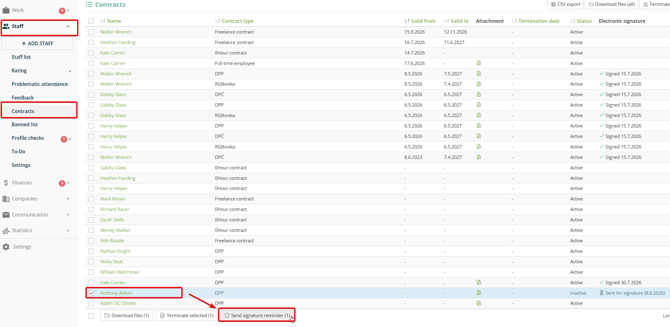
We’ve automated the follow-up process for pending contracts. You can send a professional reminders to staff directly from your Contracts dashboard, saving you from manual tracking and individual messaging. OnSinch system will instantly notify staff members to complete their signatures.
Go to Staff→ Contracts→ Check selected staff→ Send signature reminder
Termination of Contracts
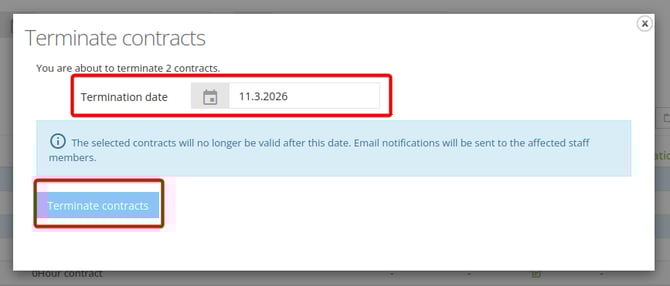
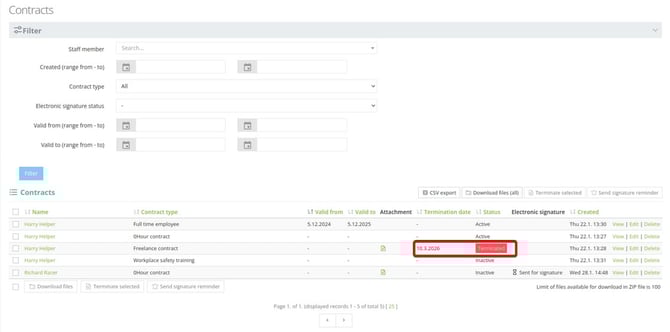
An option to terminate contracts can be found in the Contracts tab, and it defines the termination date of work contract via OnSinch application. This functionality allows administrators to schedule a termination date and notify the staff member accordingly via OnSinch. This is a first step toward a more comprehensive contract termination workflow which will be visible and clear to staff members and admins of application. This feature is available only from admin interface and can be done in single of bulk action.
When a termination action is performed, the platform automatically generates an audit log to ensure every change is tracked for compliance and security purposes.
Communication is handled instantly through automatic email notifications sent directly to the relevant staff member, keeping all parties informed without manual intervention. Furthermore, to maintain data integrity, the system ensures that any individual with a pending termination is automatically excluded from validity queries the moment their departure takes effect.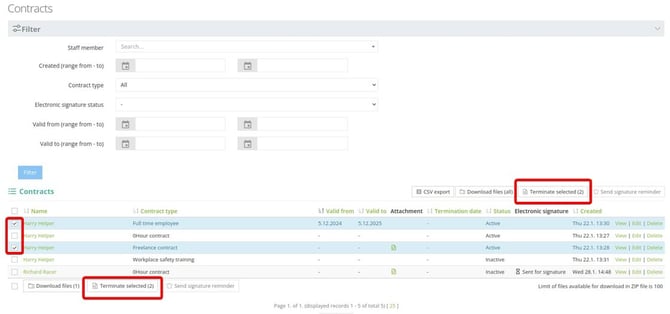
A potential next step under consideration is the automatic generation of a termination document that could require an e-signature from the staff member, which be added in the future to close a termination workflow of staff contracts.