
The Closing Form is designed to be the single place where you finalise a shift. This update extends that goal by giving you full control over staff positions and standby assignments directly within the form, and by making the outcome of those changes visible to everyone who needs to see them.
Moving Staff During Closing
When moving a staff member during the closing process, you now choose what happens to their position:
- Move into an existing position - assign the staff member directly to a position that already exists on the shift
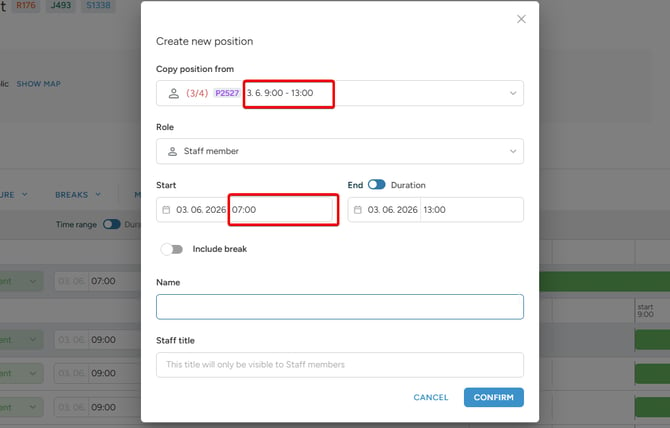
- Create a new position - generate a fresh position on the spot, as before.
❗Important warning: Be aware when you create a new postions in Closing from, original postion tags and effects wont be copied - need to be added manually to a newly created postion in Builder.
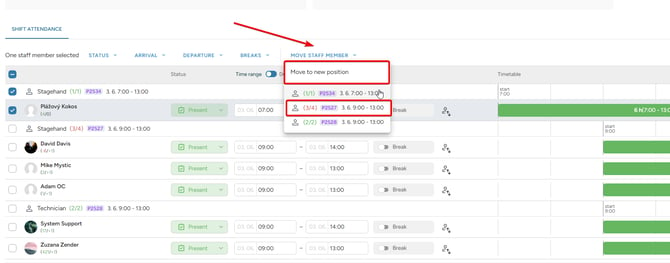
This applies to standbys and to regular staff members alike. If a few people started working earlier than planned, or if roles shifted on the day, you can reflect that in the Closing Form without opening the Builder.
⭕Use case tip: If one or more of your staff members arrives at the shift early and begins to work and you want to adjust a new working time accordingly, this way you can mark early arrival directly in closing form without a necessity to leave to Builder. You create a new postion with prolonged attendance and assign a staff member(s) to this new positon with correct attendance.
You can also move staff freely between existing positions at this stage, keeping the final record accurate without additional steps in a few clicks.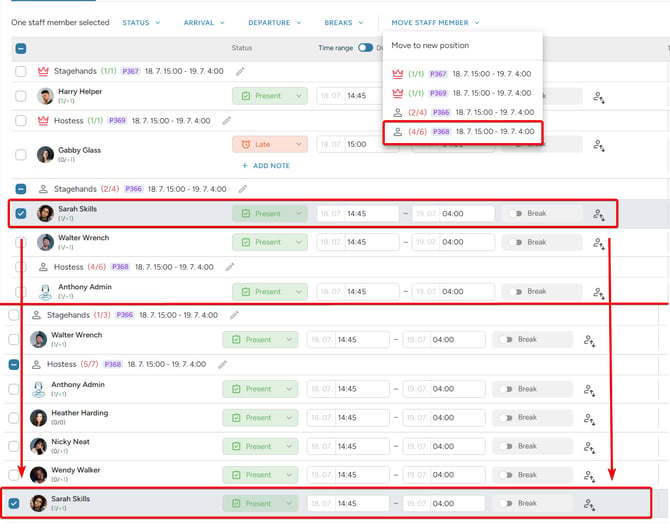
⭕Use case tip: This is useful when you have some staff member changes in a last minute or you want to move staff member across to a new position based on a new reality such as a last-minute shift from a Stagehand position to Hostess.
Standby Tracking Indicators
Whenever a staff member's role changes during closing, the original assignment is preserved. This means standby usage stays visible after the shift is closed, rather than being overwritten.
Two indicators flag these cases clearly:
| Indicator | What it means |
|---|---|
| Working standby | A staff member booked as a standby who ended up working the shift |
| Staff member moved to standby | A booked staff member who ended up on standby instead |


Each indicator appears as an icon with a tooltip so the two cases are easy to tell apart. You will find them in the following places:
- Closing Form
- Admin job detail page
- Shift detail panel
- Shift timeline
This gives administrators a full picture of how the shift actually played out based on information input by Crewboss on the actual shift, not just how it was originally planned.
Editable Positions in Closing Form
When a change in your plan occurs and you need to change details of a shift, you as an admin, can edit the position directly in the closing form. A pencil icon on the position heading opens a dialogue window for changing the position role, its start and end time, and both its public and staff titles. Edits are applied when you submit the form, and any position with a pending changes is clearly marked as unsaved until then. 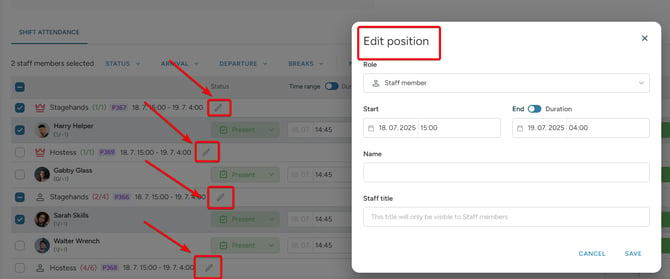
What's Coming Next
This update is the first step in a broader set of improvements to the Closing Form. Planned additions include:
- Export of original role information - include standby and position change data in exports
- Drag-and-drop moves - reposition staff directly within the form
💡 Tip: Use the Working standby and Staff member moved to standby indicators after closing to review how often your standby planning is being used in practice. It's a reliable way to spot patterns and fine-tune how many standbys you book for recurring event types.